
Knowledge Base Management
Knowledge bases are the foundation of intelligent, context-aware agents in Agent Forge. They enable your agents to access organizational knowledge, documentation, and domain-specific information to provide accurate, informed responses.
What is a Knowledge Base?
A knowledge base is a collection of documents that agents can search and reference when answering questions. When a user asks a question:
- Semantic Search: The system searches the knowledge base for relevant content
- Retrieval: Top matching document chunks are retrieved
- Context Injection: Relevant content is added to the agent’s context
- Response Generation: Agent generates response using both its training and the retrieved knowledge
Benefits of Knowledge Bases
Accuracy: Agents provide information based on your organization’s actual documents and policies
Currency: Update knowledge by adding new documents - no need to retrain models
Source Attribution: Agents can cite specific documents or sources
Consistency: All agents using the same knowledge base provide consistent information
Specialization: Create domain-specific knowledge bases for different agent types
Accessing Knowledge Base Management
Navigate to the Knowledge section from the left sidebar or top navigation.
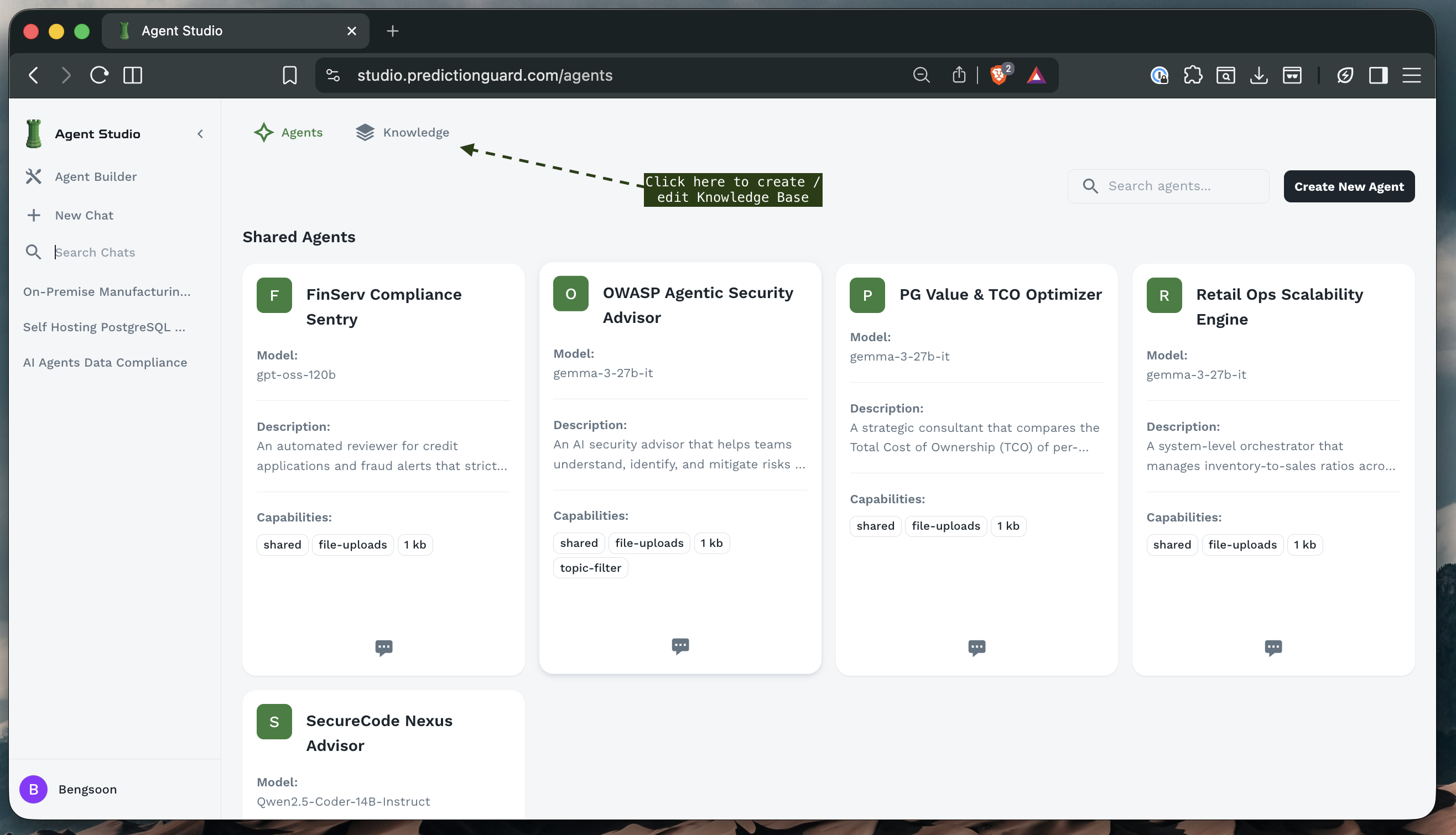
The Knowledge Base interface provides:
- Tabs: Switch between Agents and Knowledge sections
- Knowledge Base List: View knowledge bases you have created
- Create Button: Create new knowledge bases
- Search: Find specific knowledge bases
Knowledge Base Overview
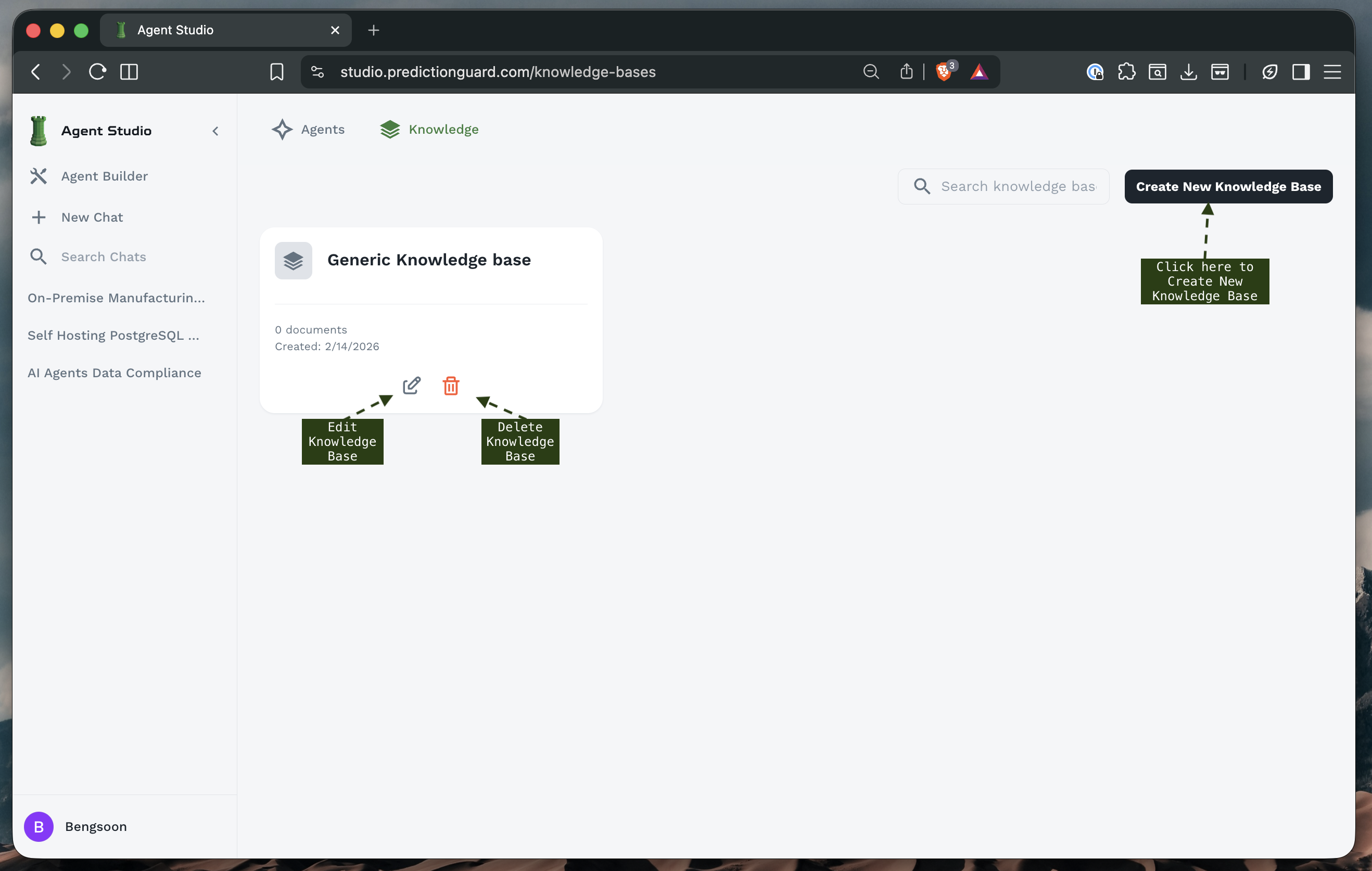
The main Knowledge Base screen displays:
Knowledge Base Cards: Each showing:
- Name: Descriptive title
- Document Count: Number of documents in the KB
- Creation Date: When the KB was created
- Edit/Delete Options: Manage the knowledge base
- Document Thumbnails: Preview of included files
Example Knowledge Bases:
- Generic Knowledge Base: General organizational information
- On-Premise Manufacturing Predictive: Manufacturing-specific knowledge
- Self Hosting PostgreSQL: Database documentation
- AI Agents Data Compliance: Compliance and regulatory documents
Creating a Knowledge Base
Step 1: Initiate Creation
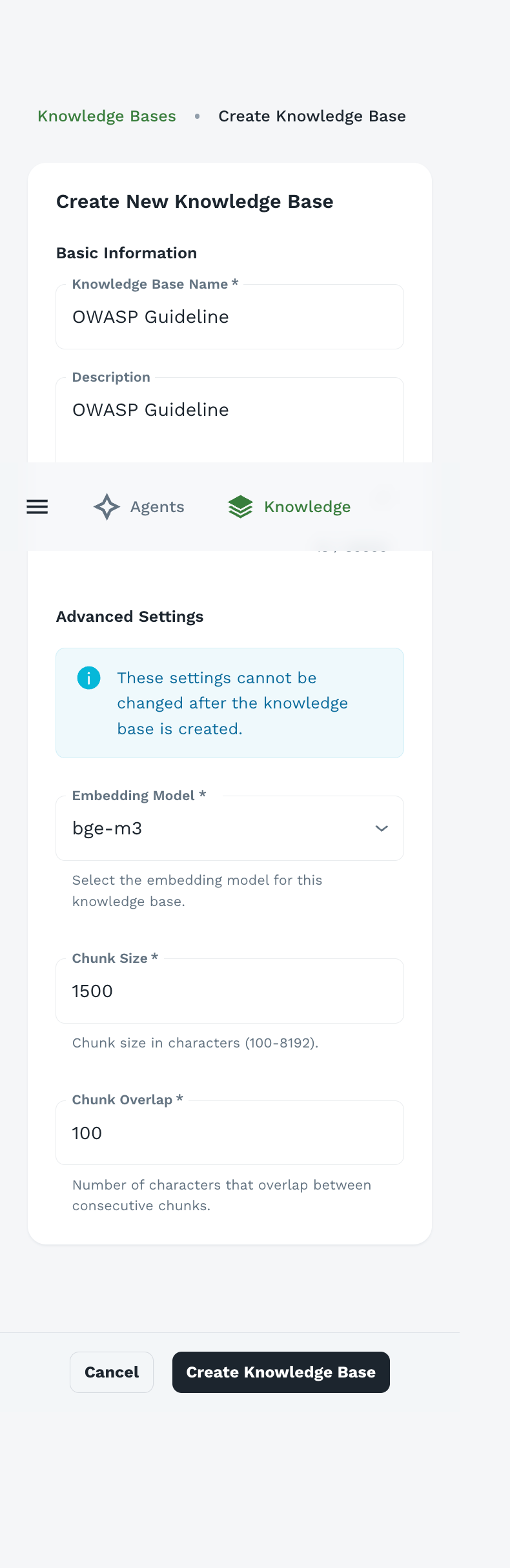
- Click “Create New Knowledge Base” button in the top-right corner
- The knowledge base creation form appears
Step 2: Basic Information
Knowledge Base Name (Required)
- Descriptive, clear name indicating the KB’s content
- Examples: “OWASP Guidelines”, “Product Documentation”, “Company Policies”
Description
- Explain what documents are included
- Indicate which agents should use this KB
- Note any specific focus areas or limitations
Example:
Step 3: Advanced Settings
Important: These settings cannot be changed after the knowledge base is created. Plan carefully before proceeding.
Embedding Model
Purpose: The model used to generate vector embeddings for semantic search
Available Models:
- bge-m3: Multilingual, high-quality embeddings (recommended)
- bridgetower: Multimodal embeddings (text + images)
- Other models based on your deployment
Choosing an Embedding Model:
Recommendation: Use bge-m3 for most use cases unless you have specific requirements.
Why It Matters: The embedding model must remain consistent for a knowledge base. Changing it would require regenerating all embeddings, which is why it’s locked after creation.
Chunk Size
Range: 100-8192 characters
Default: 1500 characters
Purpose: Size of text segments for indexing and retrieval
How It Works:
- Documents are split into chunks of approximately this size
- Each chunk is embedded separately
- During search, individual chunks are matched and retrieved
- Multiple chunks can be retrieved from the same document
Choosing Chunk Size:
Best Practices:
Example: With chunk size 1500:
- 3000-word document = ~6-8 chunks
- Each chunk contains 200-250 words
- Chunks overlap to maintain context
Chunk Overlap
Range: 0-500+ characters
Default: 100 characters
Purpose: Number of characters that overlap between consecutive chunks
Why Overlap Matters:
- Prevents breaking related information across chunks
- Maintains context at chunk boundaries
- Improves retrieval quality
Visual Example:
Recommended Overlap:
Higher Overlap:
- ✅ Better context preservation
- ✅ Fewer missed connections
- ❌ More storage required
- ❌ Potential redundancy
Lower Overlap:
- ✅ More efficient storage
- ✅ Faster processing
- ❌ May break related content
- ❌ Context gaps at boundaries
Tip: For most use cases, set overlap to 7-10% of chunk size. This provides good context preservation without excessive redundancy.
Step 4: Create the Knowledge Base
- Review all settings carefully (Advanced Settings are permanent)
- Click “Create Knowledge Base”
- Empty knowledge base is created
- You’ll be directed to the document upload interface
Uploading Documents
After creating a knowledge base, you can add documents.
Supported File Formats
Agent Forge supports a wide range of document formats:
Document Formats:
.pdf- PDF documents.doc- Microsoft Word (legacy).docx- Microsoft Word.txt- Plain text files.md- Markdown files
Structured Data:
.csv- Comma-separated values.json- JSON data files
Other Formats (check your deployment):
.pptx- PowerPoint presentations.xlsx- Excel spreadsheets.html- Web pages.xml- XML documents
Document Management
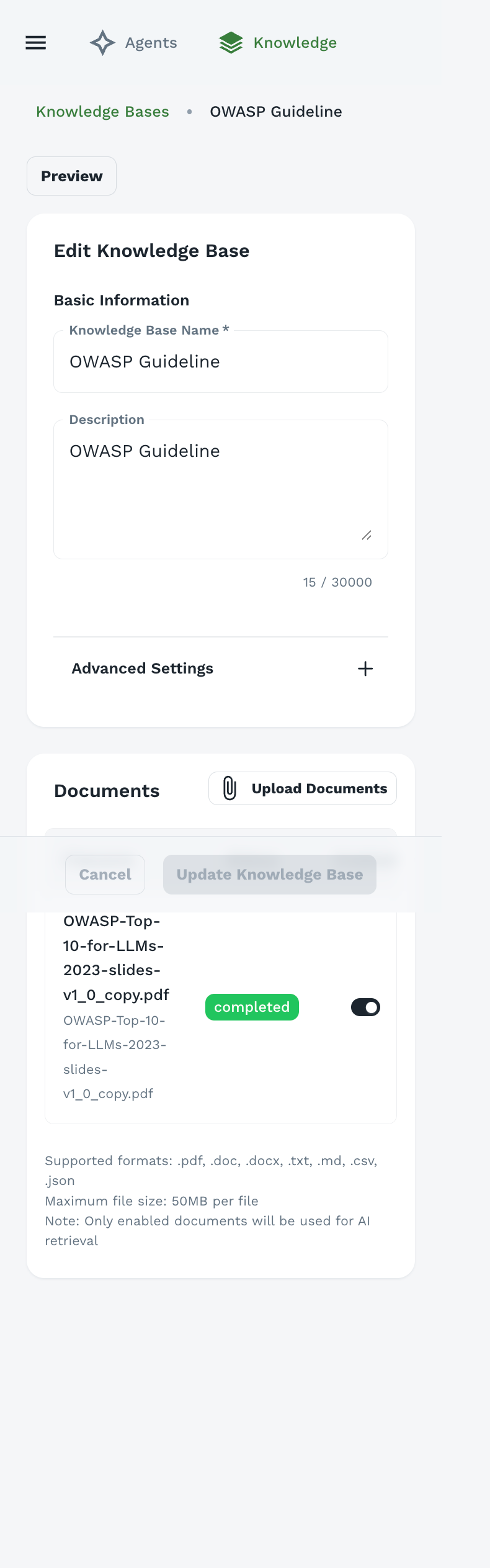
Once uploaded, each document shows:
- Filename: Original document name
- Status: Processing status badge
- Toggle: Enable/disable document
- Delete: Remove document from knowledge base
Enable/Disable Documents:
- Use the toggle switch to enable or disable documents
- Disabled documents are not searched
- Useful for temporarily excluding documents without deleting
Note: Only enabled documents will be used for AI retrieval. Disable documents you want to keep but not search.
Testing Semantic Search
One of the most powerful features of Agent Forge is the ability to test your knowledge base’s semantic search directly - before attaching it to any agents. This helps you verify that your documents are properly indexed and that the search is returning relevant results.
Accessing the Preview Feature
To test semantic search on a knowledge base:
- Navigate to the Knowledge section from the sidebar
- Click on a knowledge base card to open it
- Click the “Preview” button at the top of the knowledge base detail page
- The semantic search testing interface will appear
Understanding the Preview Interface
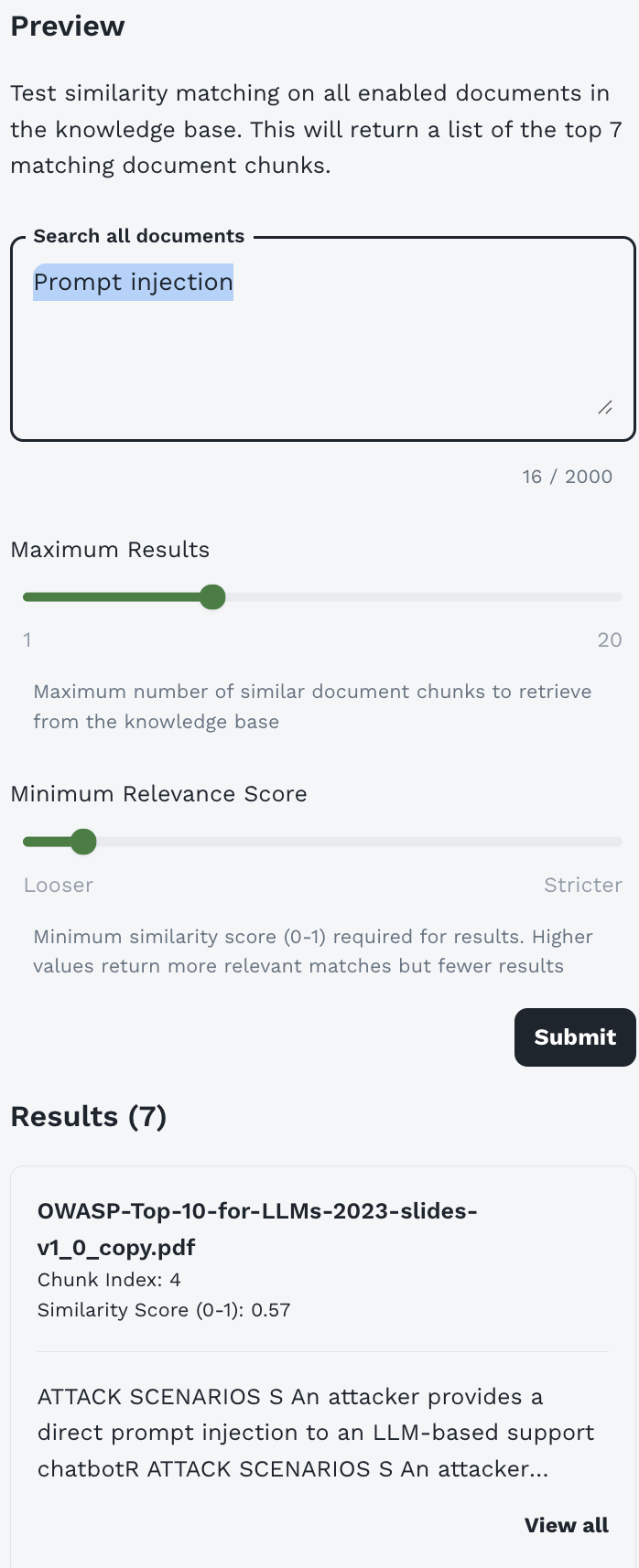
The Preview interface provides a complete testing environment for your knowledge base:
Header Description:
This feature searches across all enabled documents in your knowledge base using the same semantic search technology that agents use.
Search Components
Search Query Box
Purpose: Enter your test query to search the knowledge base
Character Limit: 2000 characters
What to Test:
- Natural language questions
- Keywords and phrases
- Specific concepts or terms
- Edge cases and variations
Tip: Use the same types of questions your users will ask agents. This gives you realistic preview of search performance.
Maximum Results Slider
Range: 1 to 20 chunks
Purpose: Control how many document chunks are retrieved
Default: Typically set to 7 (as shown in interface)
How to Use:
- Lower values (1-5): Test if top results are highly relevant
- Medium values (5-10): Standard testing (balanced)
- Higher values (10-20): See breadth of relevant content
What to Look For:
- Are the top results most relevant?
- At what point do results become less relevant?
- Do you have enough relevant chunks for complex queries?
Minimum Relevance Score Slider
Range: Looser (0.0) to Stricter (1.0)
Purpose: Filter results by similarity score threshold
How It Works:
- Each result has a similarity score from 0 to 1
- 0 = No similarity, 1 = Perfect match
- Only results above the threshold are returned
Slider Positions:
Testing Strategy:
- Start with middle position
- Run your test query
- If too many irrelevant results: Move right (stricter)
- If too few results: Move left (looser)
- Find the sweet spot for your content
Understanding Search Results
After clicking Submit, you’ll see results displayed with detailed information:
Results Header
Shows the total number of chunks returned matching your criteria.
Individual Result Cards
Each result displays comprehensive information:
Document Name:
The source document containing this chunk.
Chunk Index:
The position of this chunk within the document (0-indexed). Useful for understanding document structure.
Similarity Score:
How closely this chunk matches your query:
- 0.8-1.0: Highly relevant, near-exact match
- 0.6-0.8: Good relevance, strong match
- 0.4-0.6: Moderate relevance, partial match
- 0.2-0.4: Weak relevance, tangential
- 0.0-0.2: Very weak, likely irrelevant
Chunk Preview:
First ~150-200 characters of the chunk content. Lets you verify relevance at a glance.
View All Link: Click to see the complete chunk text (up to your configured chunk size).
Interpreting Results
What Good Results Look Like
High Relevance Scores:
- Top 3-5 results should have scores above 0.6
- At least one result should be above 0.7 for specific queries
Appropriate Content:
- Chunks directly address the query
- Information is accurate and complete
- Context is preserved (no mid-sentence cuts)
Good Distribution:
- Results come from relevant documents
- Multiple perspectives if applicable
- Logical ordering by relevance
Example Good Result:
Warning Signs
Low Relevance Scores:
Irrelevant Content:
Broken Context:
Testing Strategies
1. Comprehensive Coverage Testing
Goal: Verify knowledge base covers intended topics
Process:
Example Test Plan:
2. Relevance Threshold Testing
Goal: Find optimal minimum relevance score for your KB
Process:
Documentation:
3. Chunk Size Validation
Goal: Verify chunk size settings are appropriate
Process:
If chunks are problematic:
- Too small (broken context): Create new KB with larger chunk size
- Too large (diluted relevance): Create new KB with smaller chunk size
- Poor boundaries: Increase chunk overlap in new KB
Remember: Chunk size and overlap cannot be changed after KB creation. Create a new KB if needed.
4. Query Variation Testing
Goal: Ensure KB works with different phrasings
Process:
Best Practices for Testing
Before Attaching to Agents:
- ✅ Test with 20-30 representative queries
- ✅ Verify top results have scores above 0.6
- ✅ Check that chunks contain complete, useful information
- ✅ Confirm coverage of all intended topics
- ✅ Test edge cases and unexpected queries
- ✅ Document optimal relevance threshold
Regular Testing:
- After adding documents: Test that new content is retrievable
- Monthly: Run standard test queries to ensure consistency
- After changes: Verify updates haven’t broken existing searches
Document Your Findings:
Troubleshooting Search Issues
Issue: No results returned
- Check: Are documents enabled?
- Check: Is minimum relevance score too strict?
- Try: Move slider to “Looser”
- Try: Rephrase query with simpler terms
- Solution: May need to add content on this topic
Issue: Low relevance scores across the board
- Check: Do documents actually cover this topic?
- Check: Is query phrasing very different from document language?
- Try: Use terminology from your documents
- Solution: May need to add or improve documents
Issue: Too many irrelevant results
- Check: Is minimum relevance score too loose?
- Try: Move slider to “Stricter”
- Try: Be more specific in query
- Solution: Consider removing off-topic documents
Issue: Results are out of order by relevance
- Check: Scores are very close (e.g., 0.67 vs 0.66)
- This is normal: Slight variations in scoring
- Solution: If top results are relevant, this is fine
Using Test Results to Configure Agents
After thorough testing, use your findings to configure agents:
In Agent Builder → Resources & Knowledge → Customize Search Settings:
-
Minimum Relevance Score: Set based on your testing
-
Maximum Results: Based on how many chunks are typically relevant
-
Maximum Context Size: Based on chunk sizes and result counts
Example Testing Workflow
Complete Example: Testing a new Security KB
Next Steps After Testing
Once you’re satisfied with test results:
- Configure Agents - Attach KB to agents with optimal settings
- Monitor Performance - Track agent response quality
- Iterate - Continuously improve based on user feedback
- Document - Keep notes on what works best
Pro Tip: Bookmark high-performing test queries and run them periodically to ensure consistent KB quality over time.
Best Practices for Knowledge Bases
Document Preparation
Before Uploading:
-
Clean Documents:
- Remove unnecessary headers/footers
- Fix formatting issues
- Remove duplicate content
- Ensure text is selectable (not scanned images without OCR)
-
Organize Content:
- Use clear headings and structure
- Break long documents into logical sections
- Include table of contents for long docs
- Use consistent formatting
-
Add Metadata:
- Include document titles
- Add creation/update dates
- Note document version if applicable
- Include author or source information
Document Quality:
Organizing Knowledge Bases
Strategy 1: By Domain
- “Security Knowledge Base” - All security-related docs
- “Compliance Knowledge Base” - Regulatory and compliance docs
- “Product Documentation” - Product guides and manuals
Strategy 2: By Audience
- “Customer Facing KB” - Public information
- “Internal Operations KB” - Internal procedures
- “Technical Team KB” - Developer documentation
Strategy 3: By Update Frequency
- “Static Policies KB” - Rarely changing policies
- “Product Updates KB” - Frequently updated features
- “Current Events KB” - Time-sensitive information
Maintenance
Regular Reviews:
- Audit content quarterly
- Remove outdated documents
- Update changed information
- Add new relevant documents
Quality Checks:
- Test knowledge base with sample queries
- Verify agents are retrieving correct information
- Check for gaps in coverage
- Monitor user feedback on agent responses
Editing Knowledge Bases
To edit an existing knowledge base:
- Navigate to Knowledge section
- Click on the knowledge base card
- Edit Basic Information:
- Update name
- Modify description
- Manage Documents:
- Upload additional documents
- Enable/disable existing documents
- Delete unwanted documents
- Click “Update Knowledge Base”
Remember: Advanced Settings (embedding model, chunk size, chunk overlap) cannot be changed after creation.
Attaching Knowledge Bases to Agents
Once created, attach knowledge bases to agents:
- Go to Agent Builder
- Create or edit an agent
- Navigate to “Resources & Knowledge” section
- Select “Knowledge Bases” dropdown
- Choose one or more knowledge bases
- Configure search settings (optional)
- Save agent
See Building Agents - Resources & Knowledge for detailed instructions.
Testing Knowledge Bases
Verification Steps
After uploading documents:
- Create a test agent with the knowledge base attached
- Ask questions you know are answered in the documents
- Verify responses cite correct information
- Test edge cases - questions with no answer in KB
- Check relevance - are retrieved chunks actually relevant?
Sample Test Queries
Direct Fact Retrieval:
Conceptual Questions:
Multi-Document Queries:
Not in Knowledge Base:
Troubleshooting
Common Issues
Issue: Agent not using knowledge base
- Solution:
- Verify KB is attached to agent
- Check documents are enabled
- Lower minimum relevance score
- Increase maximum results
Issue: Irrelevant results retrieved
- Solution:
- Increase minimum relevance score
- Reduce chunk size for more precise matching
- Review document quality
- Remove off-topic documents
Issue: Document upload fails
- Solution:
- Check file size (under 50MB)
- Verify file format is supported
- Ensure file isn’t corrupted
- Try uploading again
Issue: Processing takes very long
- Solution:
- Large files take longer to process
- Complex PDFs may need more time
- Check status periodically
- Contact admin if stuck for hours
Issue: Chunks don’t contain complete information
- Solution:
- Increase chunk size
- Increase chunk overlap
- Restructure source documents for better segmentation
- Note: Can’t change existing KB - create new one
Performance Optimization
Faster Search:
- Use focused knowledge bases (fewer documents)
- Remove redundant documents
- Optimize chunk size for your use case
- Set appropriate maximum results limit
Better Results:
- Higher quality source documents
- Appropriate chunk size for content type
- Good chunk overlap (7-10%)
- Regular content updates
Advanced Topics
Semantic Search Explained
Knowledge bases use semantic search, not keyword search:
Keyword Search (Traditional):
Semantic Search (Agent Forge):
Embedding Models
Embeddings convert text into numerical vectors that capture meaning:
Similar meanings produce similar vectors, enabling semantic search.
Vector Databases
Knowledge bases use vector databases (e.g., FAISS, Pinecone, Milvus) to:
- Store embeddings efficiently
- Perform fast similarity search
- Scale to millions of documents
- Enable real-time retrieval
Security Considerations
Sensitive Information
Before uploading:
- Review documents for sensitive data
- Redact confidential information
- Consider access control implications
- Follow your organization’s data policies
Remember:
- Knowledge base content may be visible to all agents using it
- Agents with PII detection can mask sensitive data, but prevention is better
- Audit who has access to agents using sensitive KBs
Access Control
Knowledge bases are scoped to the user who created them:
- Only the creator of a knowledge base can attach it to their agents
- Users chatting with agents see information from attached KBs
- Public agents can use a knowledge base configured by their creator
Best Practices:
- Create separate KBs for different sensitivity levels
- Use clear naming to indicate confidentiality
- Document which agents should use which KBs
- Regular access audits
Next Steps
Now that you understand knowledge bases:
- Build Agents - Create agents that use your knowledge bases
- Chat with Agents - Test agents with knowledge base integration
- Iterate and Improve - Refine knowledge bases based on agent performance