
Admin Console
The Prediction Guard Admin Console is your central control plane for managing your sovereign AI systems. From here, you can create and manage multiple systems, deploy any open model, manage API keys, configure MCP servers, apply governance policies, and monitor all activity across your infrastructure.
Accessing the Admin Console
Once deployed, access the Admin Console at your deployment’s URL (e.g. admin.predictionguard.com) and log in with your admin credentials.
Navigation
The Admin Console sidebar is organized into three groups:
Systems
- Manage — Create, view, and manage all your AI systems
Security
- Analyze — Analyze AI interactions for security and compliance signals
- Monitor — Real-time monitoring of system usage and performance
- Govern — Configure and apply AI governance policies
- Audit — Review audit logs and compliance reports
Settings
- Users — Manage user accounts and access
- Organizations — Manage organizational settings and structure
Systems: Manage
The Systems page is your starting point — a unified view of all AI systems in your Prediction Guard deployment.
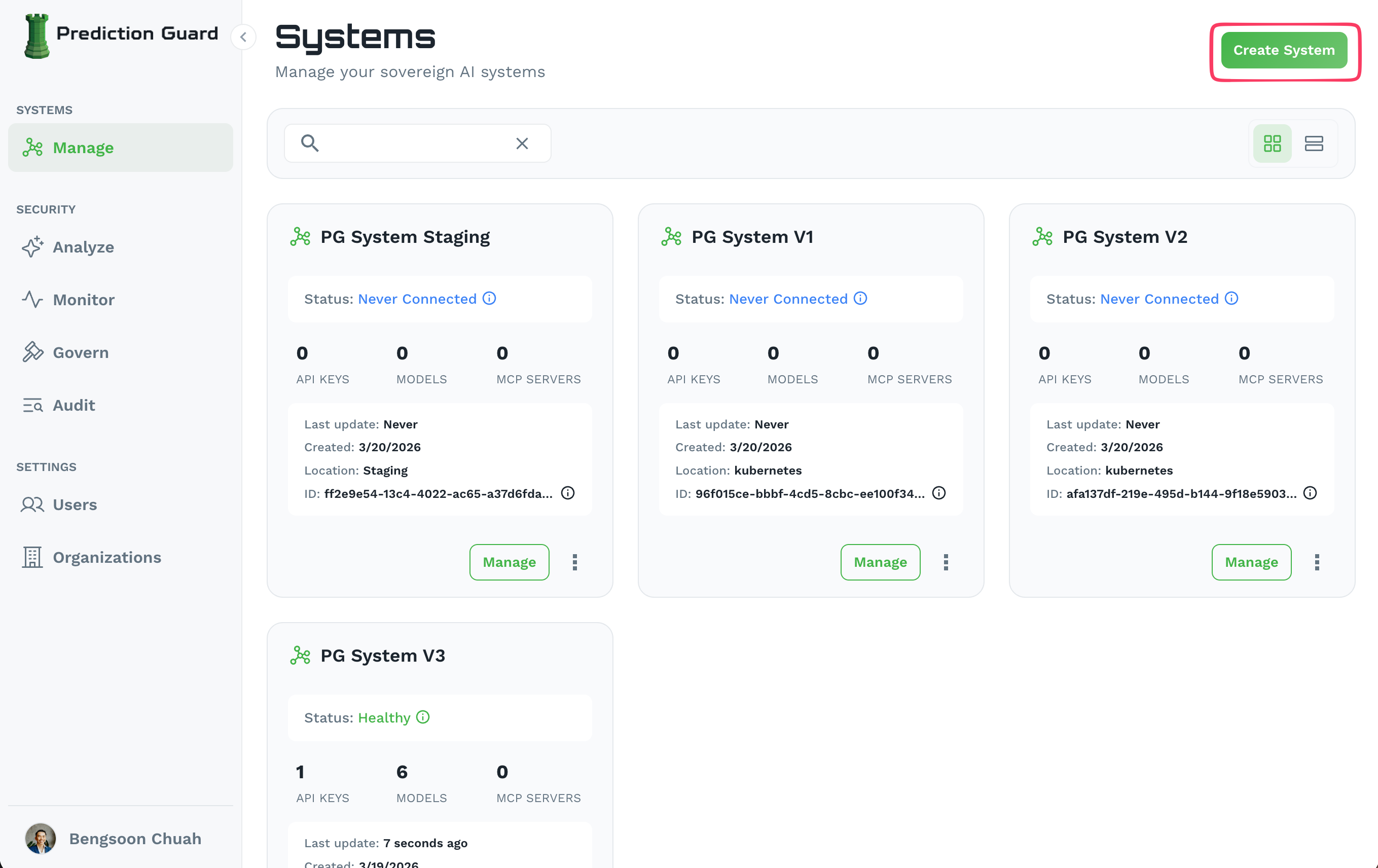
Each system card shows:
- Status: Health state (Healthy, Never Connected, Degraded)
- API Keys: Number of active API keys
- Models: Number of deployed models
- MCP Servers: Number of connected MCP servers
- Location: Deployment environment (e.g.
kubernetes,staging) - Last Update: Time of last heartbeat from the system
Click Manage on any system card to open its management dashboard, where you can configure API keys, models, MCP servers, and advanced settings. Click Create System to add a new system.
Security: Analyze
The Analyze section gives you visibility into the safety and composition of all AI models across your systems. It has two tabs: Scans and BOMs.
Scans
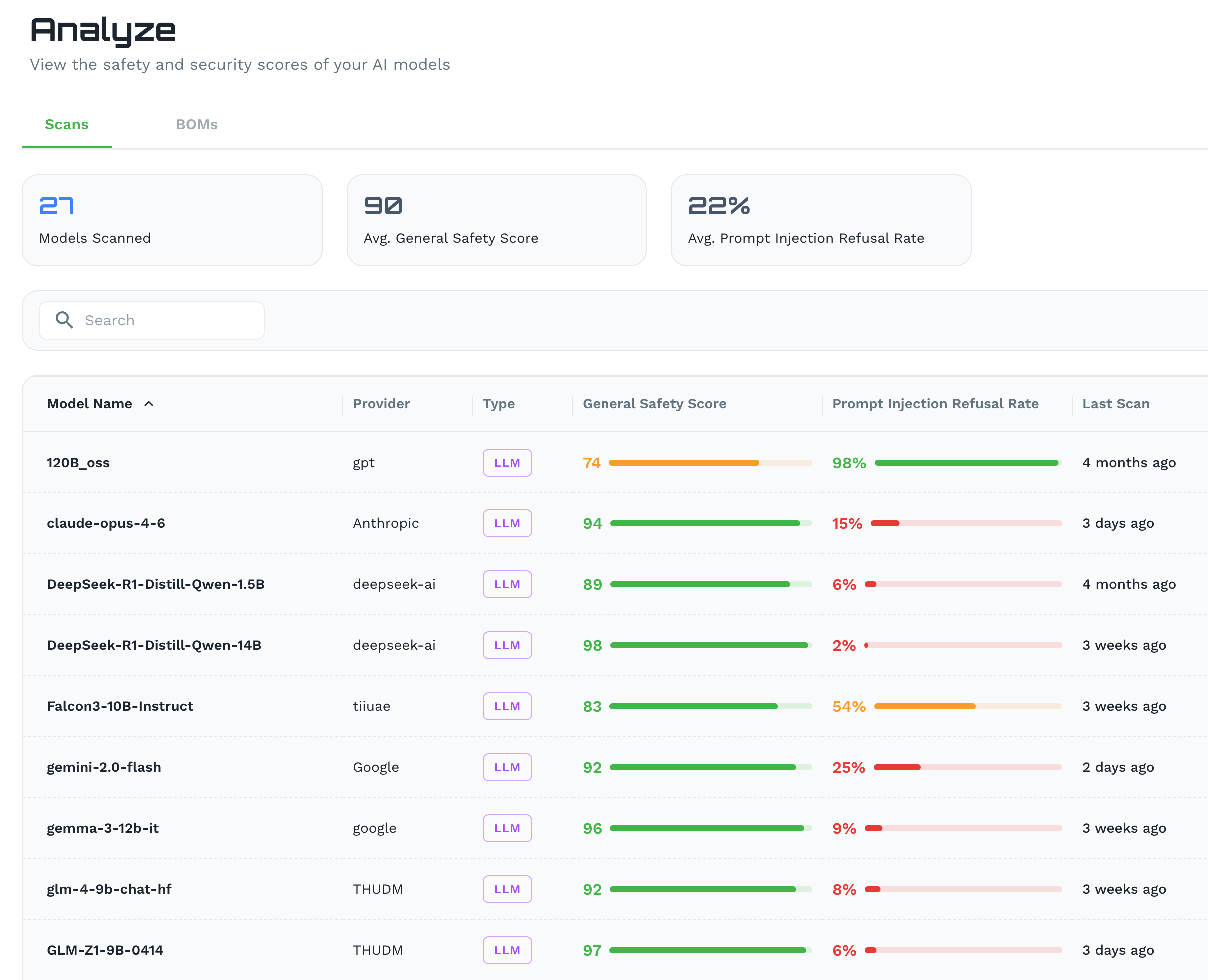
The Scans tab shows safety and security scores for every AI model in your deployment. At a glance you can see:
- Models Scanned: Total number of models that have been analyzed
- Avg. General Safety Score: Average safety score across all scanned models (0–100)
- Avg. Prompt Injection Refusal Rate: How reliably models resist prompt injection attempts on average
The model table breaks this down per model, showing Provider, Type, General Safety Score, Prompt Injection Refusal Rate, and Last Scan date. Use this to compare models, identify weaker performers, and make informed decisions about which models to deploy in sensitive environments.
BOMs (Bill of Materials)
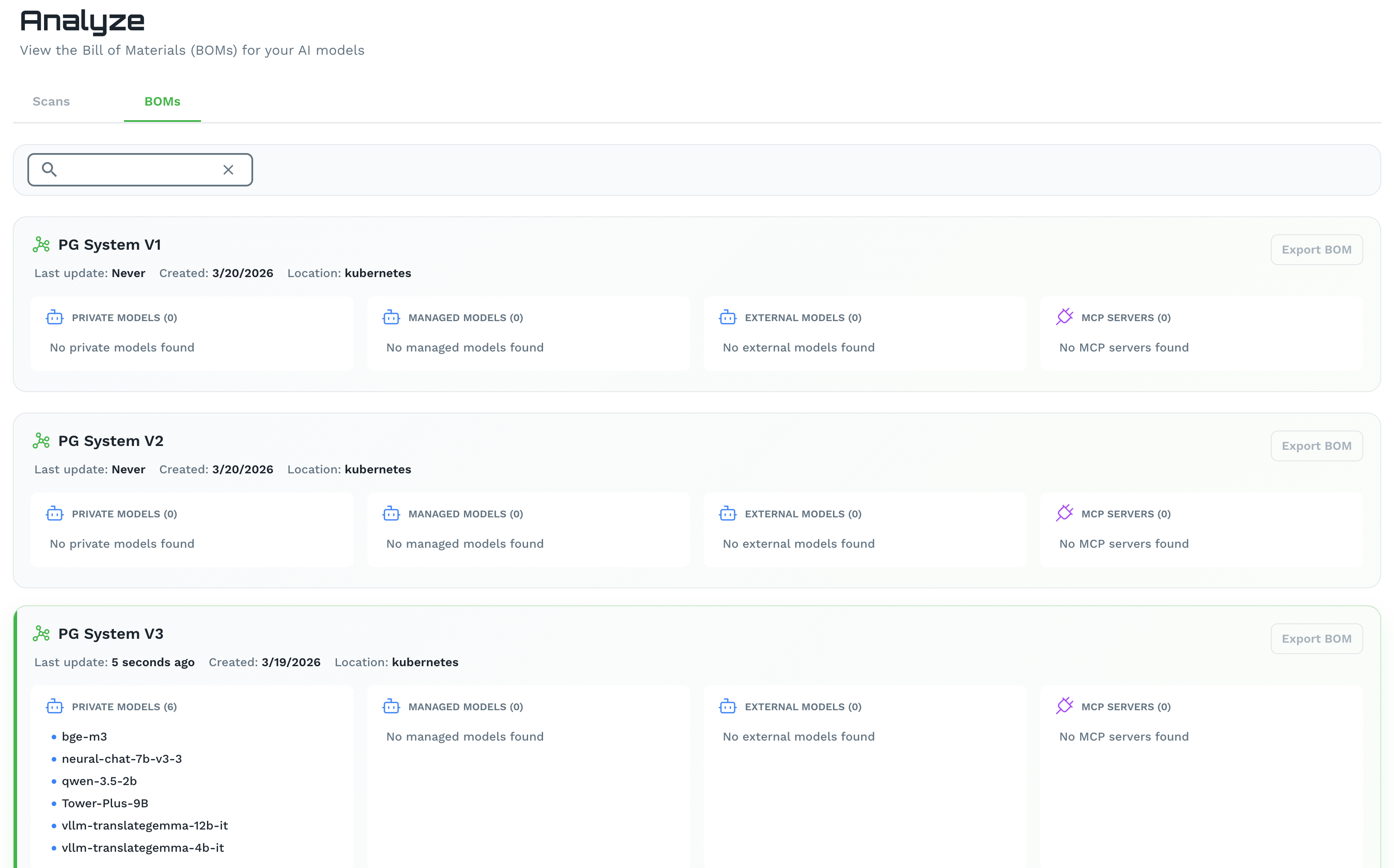
The BOMs tab provides a Bill of Materials for each AI system — a full inventory of everything running in that system:
- Private Models: Models you have deployed from your own repositories
- Managed Models: Models managed and maintained by Prediction Guard
- External Models: Third-party models connected to your system
- MCP Servers: Connected Model Context Protocol servers
See Model Management for a full guide to deploying all three model types.
Each system has an Export BOM button to download a full inventory report — useful for compliance audits, vendor assessments, and internal governance reviews.
Security: Monitor
The Monitor section provides real-time observability into your AI systems — tracking request volumes, latency, model performance, and resource utilization. Use this to detect anomalies, track usage trends, and ensure your systems are operating within expected parameters.
Security: Govern
The Govern section is where you configure and apply AI governance policies system-wide. Policies set here are enforced across all agents and models within your systems without requiring per-agent configuration.
Governance Baselines
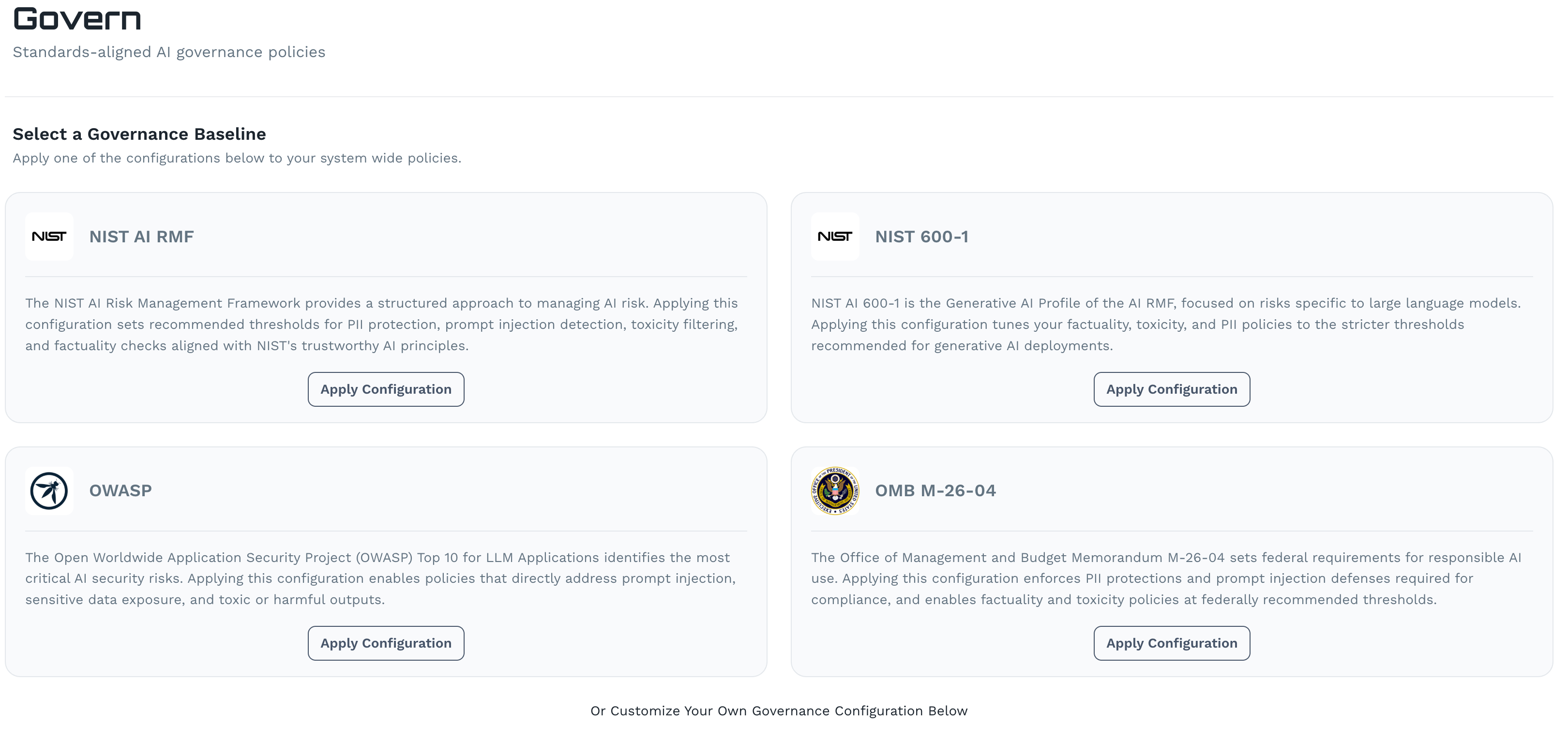
Prediction Guard ships with four pre-built governance baselines you can apply with a single click:
Click Apply Configuration on any baseline to apply it as your system-wide governance policy.
Custom Governance Configuration
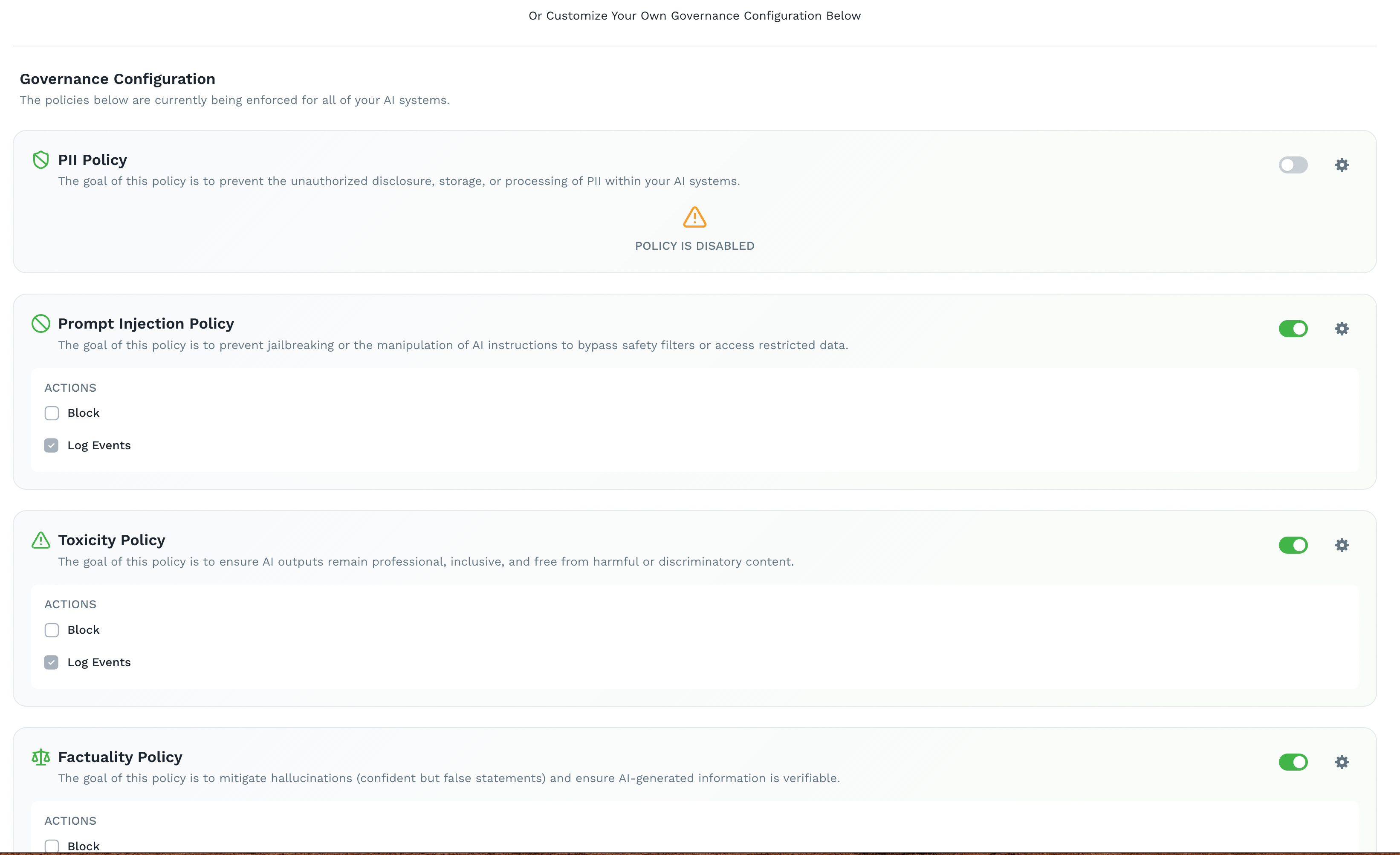
Below the baselines, the Governance Configuration section lets you fine-tune individual policies. Each policy can be independently enabled or disabled, and configured with specific actions:
Applying a governance baseline will pre-configure these toggles to the recommended settings for that standard. You can then adjust individual policies from the custom configuration below.
Security: Audit
The Audit section provides a tamper-evident log of all significant actions and interactions across your Admin Console — including system changes, model deployments, API key activity, and user actions. Use this for compliance reporting, incident investigation, and access reviews.
Settings: Users
Manage user accounts that have access to the Admin Console. From here you can invite new administrators, update roles, and revoke access.
Settings: Organizations
Configure organizational settings including your organization’s name, structure, and any organization-wide defaults that apply across all systems.
Need help? Contact our support team or join our Discord community for assistance.