

GCP Deployment
Prerequisites
- Google Cloud Project with billing enabled
- gcloud CLI installed and configured
- kubectl configured for your GKE cluster
- Access to Admin Console Admin Console
Deployment Process
1. Create GKE Cluster
First, create a Google Kubernetes Engine cluster:
2. Configure kubectl
3. Set GCP-Specific Configuration
- Node Pools: Configure your GKE node pools
- Storage Classes: Use Google Persistent Disk CSI driver for persistent volumes
- Load Balancer: Configure Google Cloud Load Balancer for ingress
- VPC: Specify your VPC and subnet configuration
4. Create an AI System in the Admin Console
If you have not already created your AI system in the Admin Console, follow the Quick Start or the Custom System guide to create your system and generate the installation command.
5. Get the Deployment Command
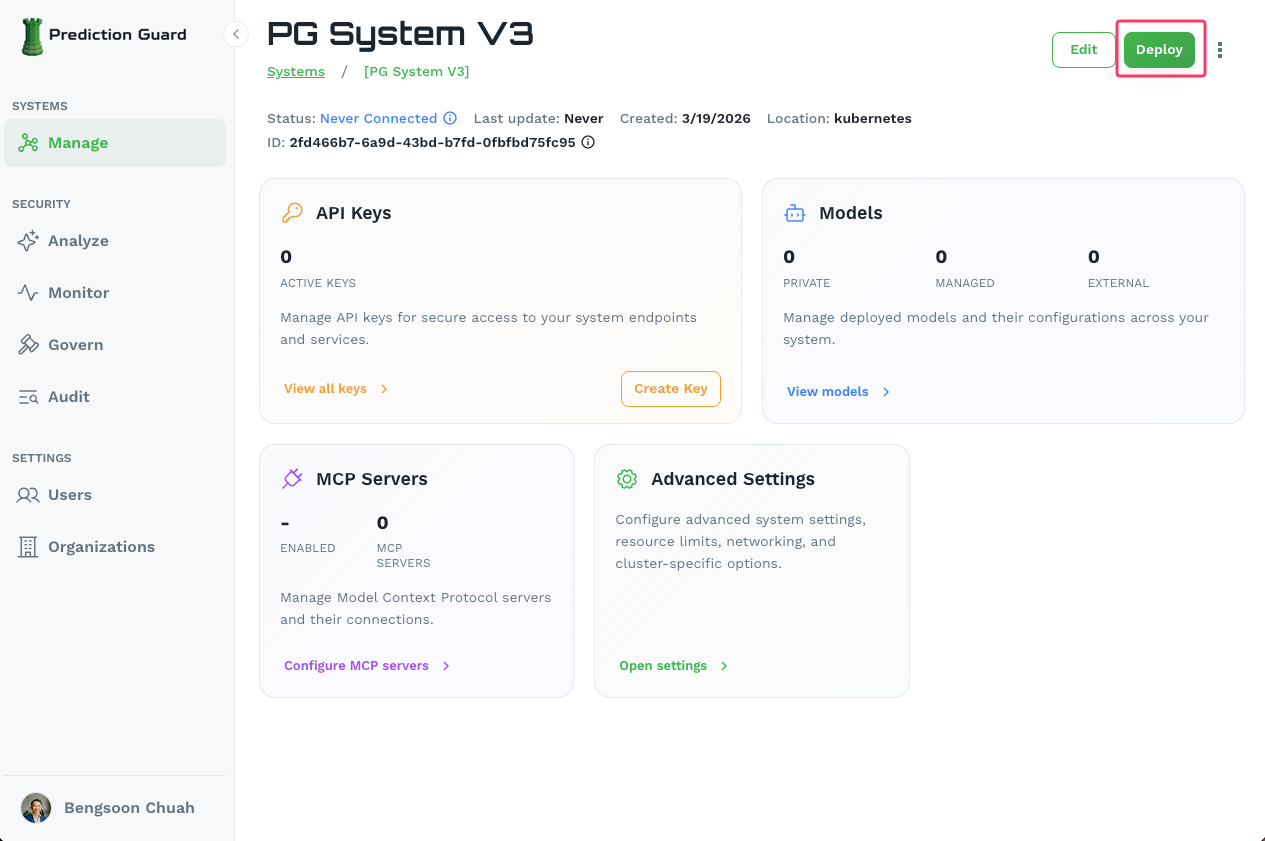
Navigate to your system in the Admin Console and click the Deploy button in the top-right corner of the system management page.
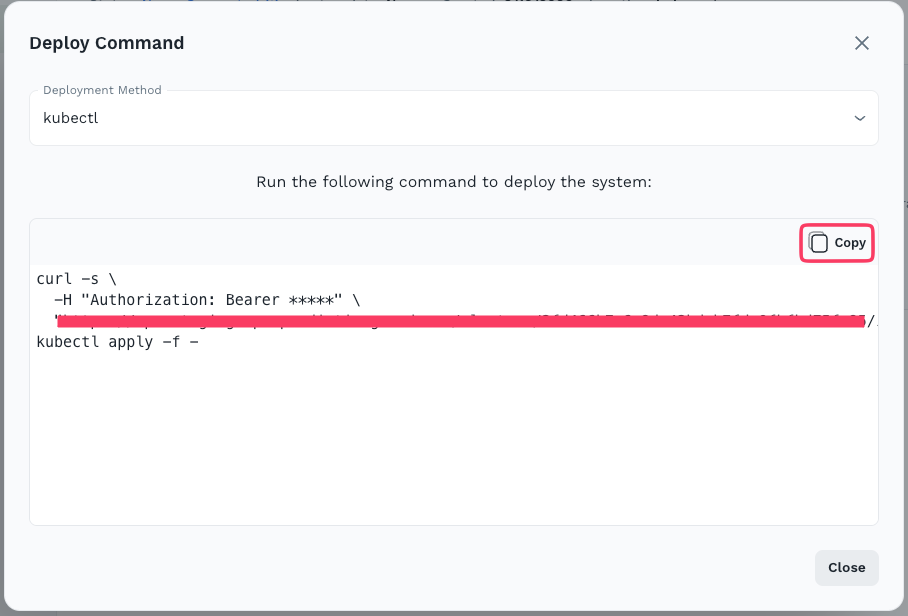
This opens the Deploy Command modal. Select kubectl as the deployment method, then click Copy to copy the generated installation command.
6. Execute the Installation on Your Cluster
Paste and run the copied command on a machine that has kubectl access to your GKE cluster. The command authenticates with your Prediction Guard instance and bootstraps all services into the predictionguard namespace.
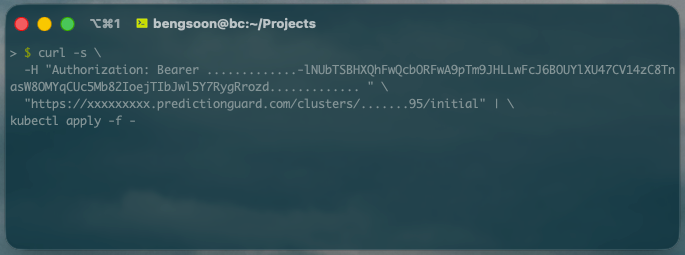
After a few minutes, verify the installation by checking the running pods:
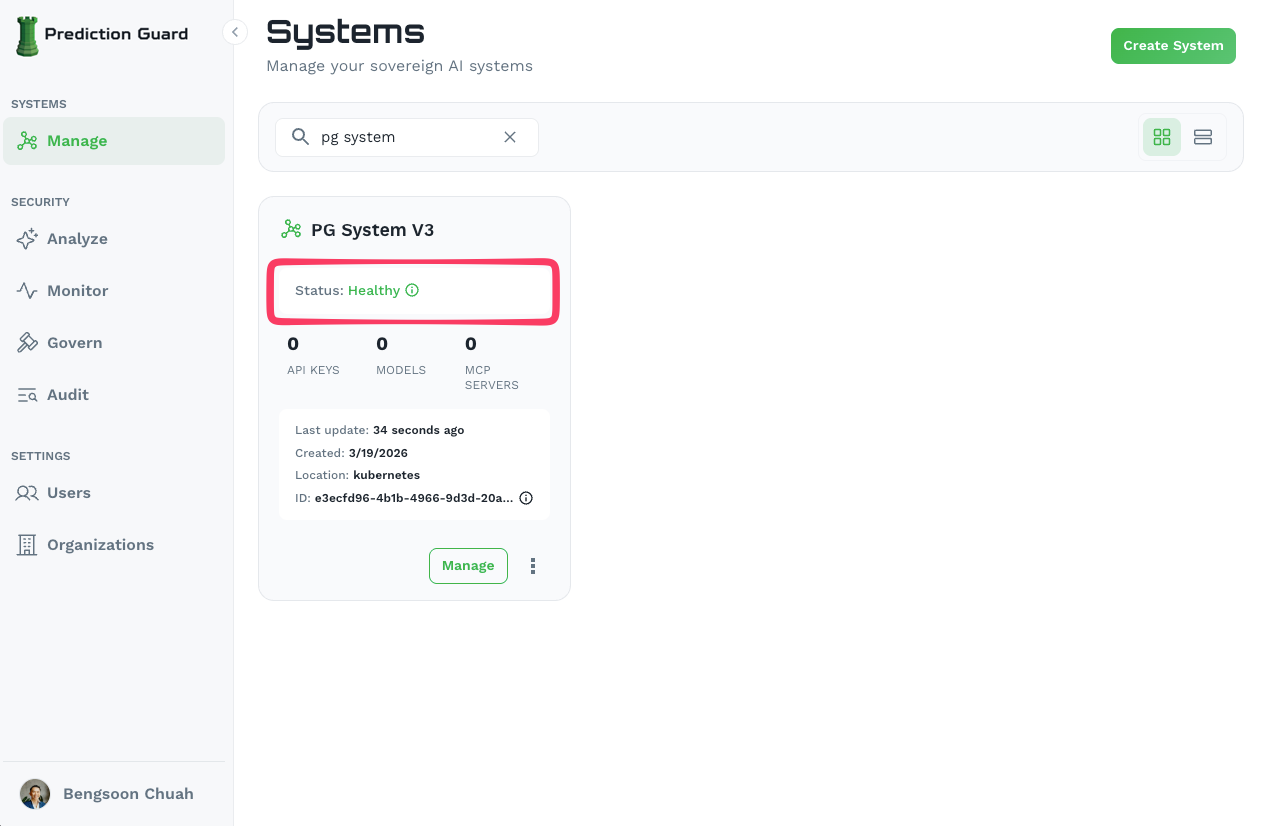
You should see running pods including pg-inside, indicating the system has been successfully installed. The system will also show as Healthy in the Admin Console.
Configuring Ingress and Reverse Proxy
Prediction Guard comes preconfigured for NGINX and a default Ingress which can be enabled on the system within the Edit section of the Systems page. Here you can configure the desired domain names and have NGINX deploy into the predictionguard namespace with preconfigured settings for the Prediction Guard API. Then, simply ensure that your DNS entry is routable to the ingress IP on your Kubernetes cluster or load balancer in GCP.
Post-Deployment
Access Your AI System
Once deployed, your AI system is accessible and manageable from the Admin Console.
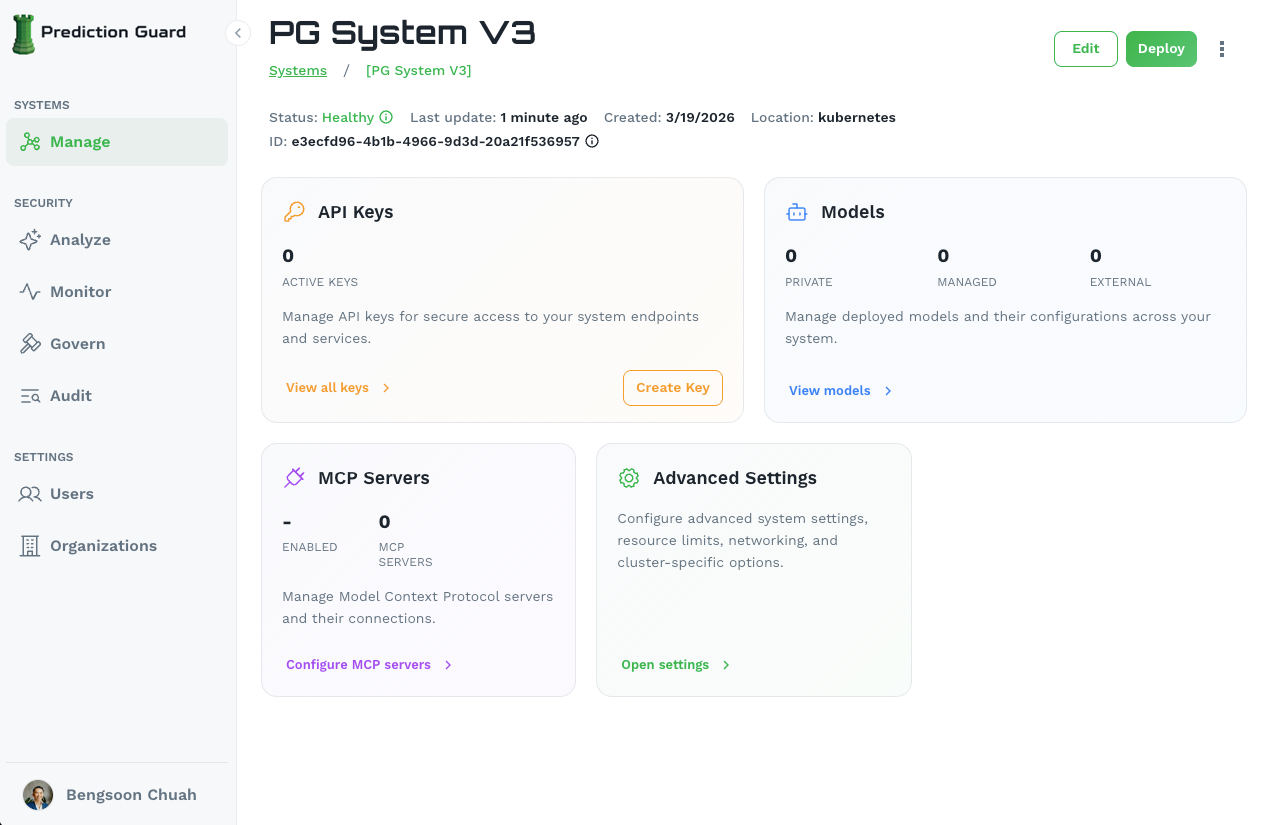
From here you can:
- API Keys: Manage API keys for secure access to your system endpoints
- Models: Deploy private, managed, or external models and their configurations
- MCP Servers: Configure Model Context Protocol servers and their connections
- Advanced Settings: Configure system settings, resource limits, networking, and cluster-specific options
- Kubernetes Dashboard: Use
kubectlto manage cluster resources directly
GCP Integration
Your deployment automatically integrates with:
- Google Persistent Disk: Persistent storage for models and data
- Google Cloud Load Balancer: Load balancing for high availability
- Cloud Monitoring: Monitoring and logging
- Identity and Access Management: Service account and role management
Need help? Contact our support team for assistance with your GCP deployment.