

System Management
The Systems page is your central view of all AI systems in your Prediction Guard deployment. From here you can create new systems, monitor their health, and manage their configuration.
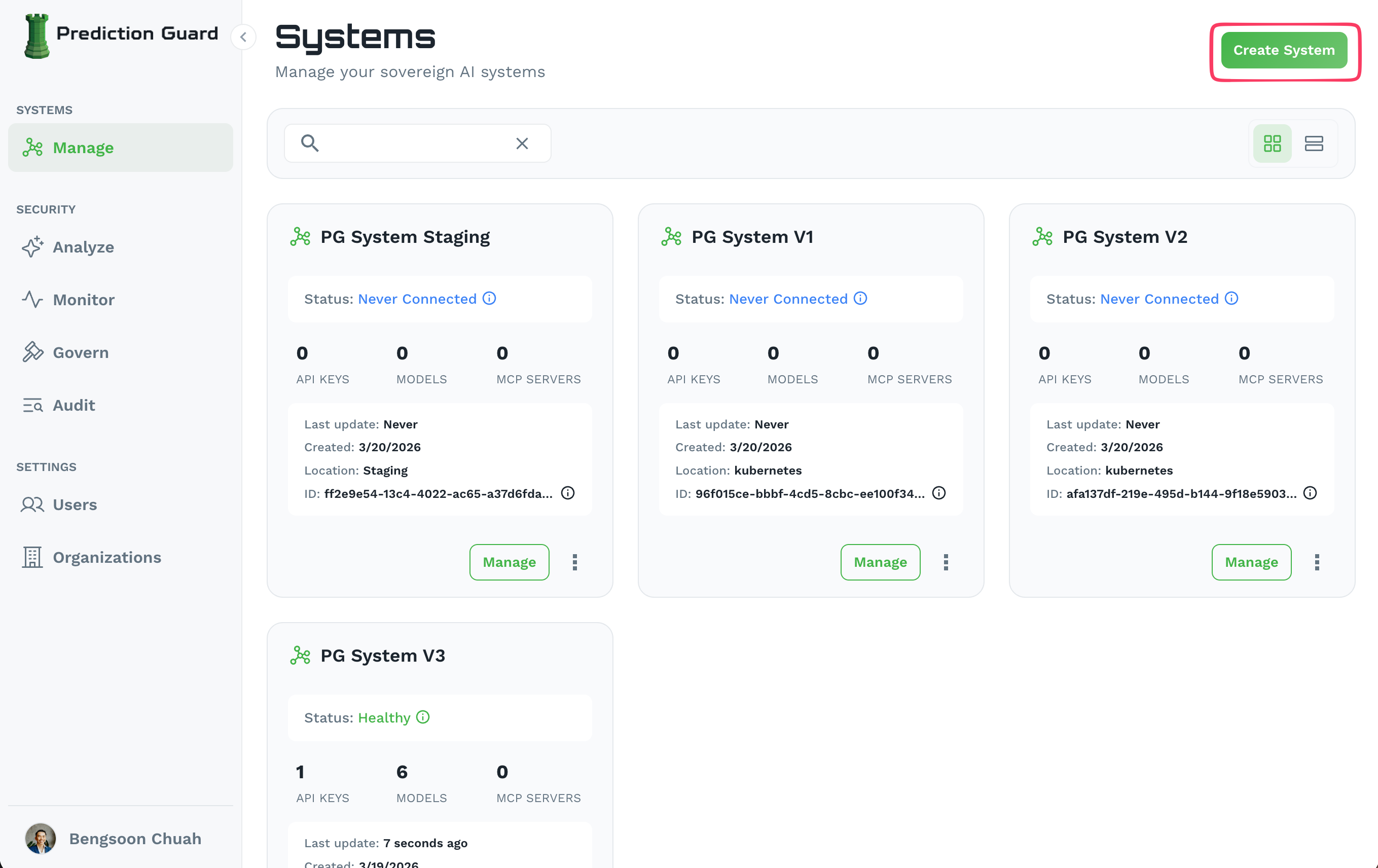
Each system card displays:
- Status: Health state (Healthy, Never Connected, Degraded)
- API Keys: Number of active API keys
- Models: Number of deployed models
- MCP Servers: Number of connected MCP servers
- Location: Deployment environment (e.g.
kubernetes,staging) - Last Update / Created: Timestamps for the system
Creating a System
Click Create System in the top-right corner. You’ll be prompted to choose a configuration mode:
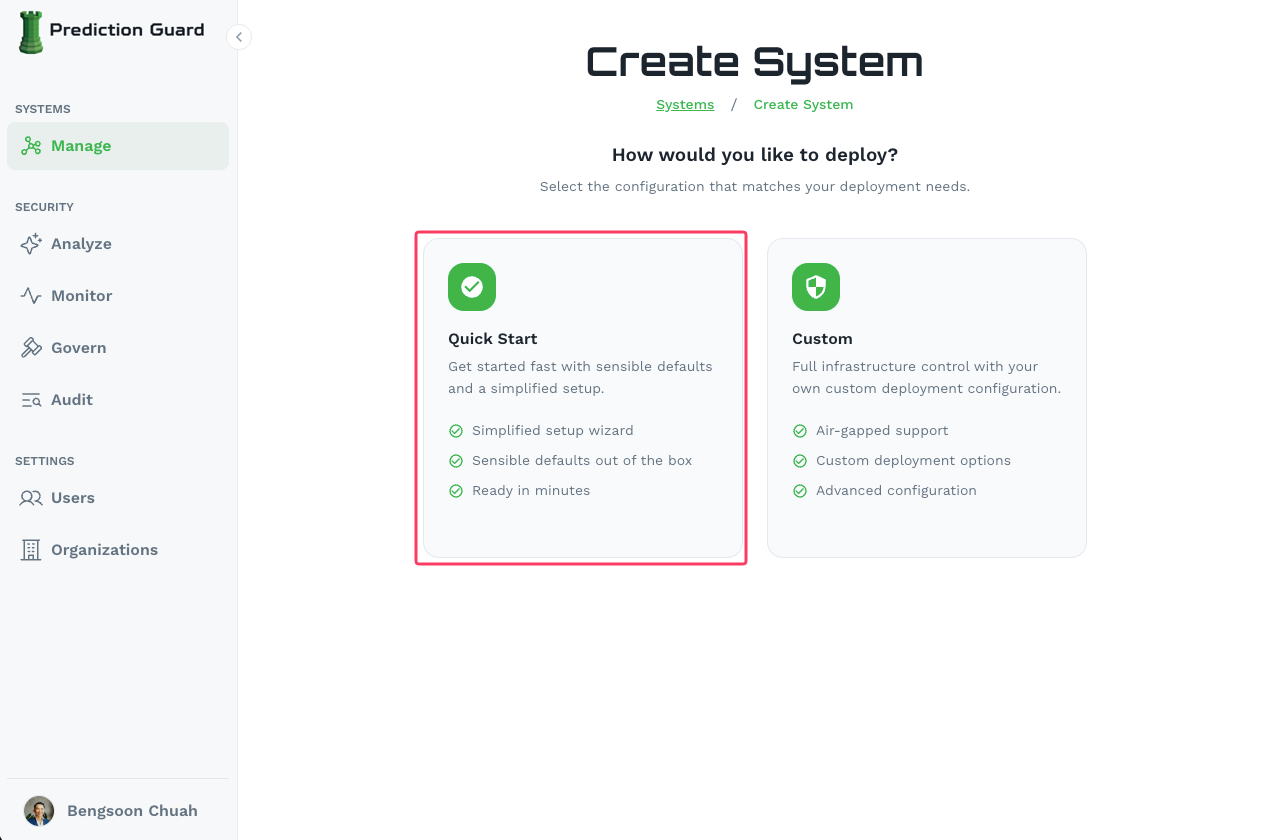
For Quick Start, provide a System Name and optionally configure a Public API Endpoint for external access. See the Quick Start guide for the full walkthrough.
For Custom configuration, see the Create an AI System guide.
Managing a System
Click Manage on any system card to open its management dashboard.
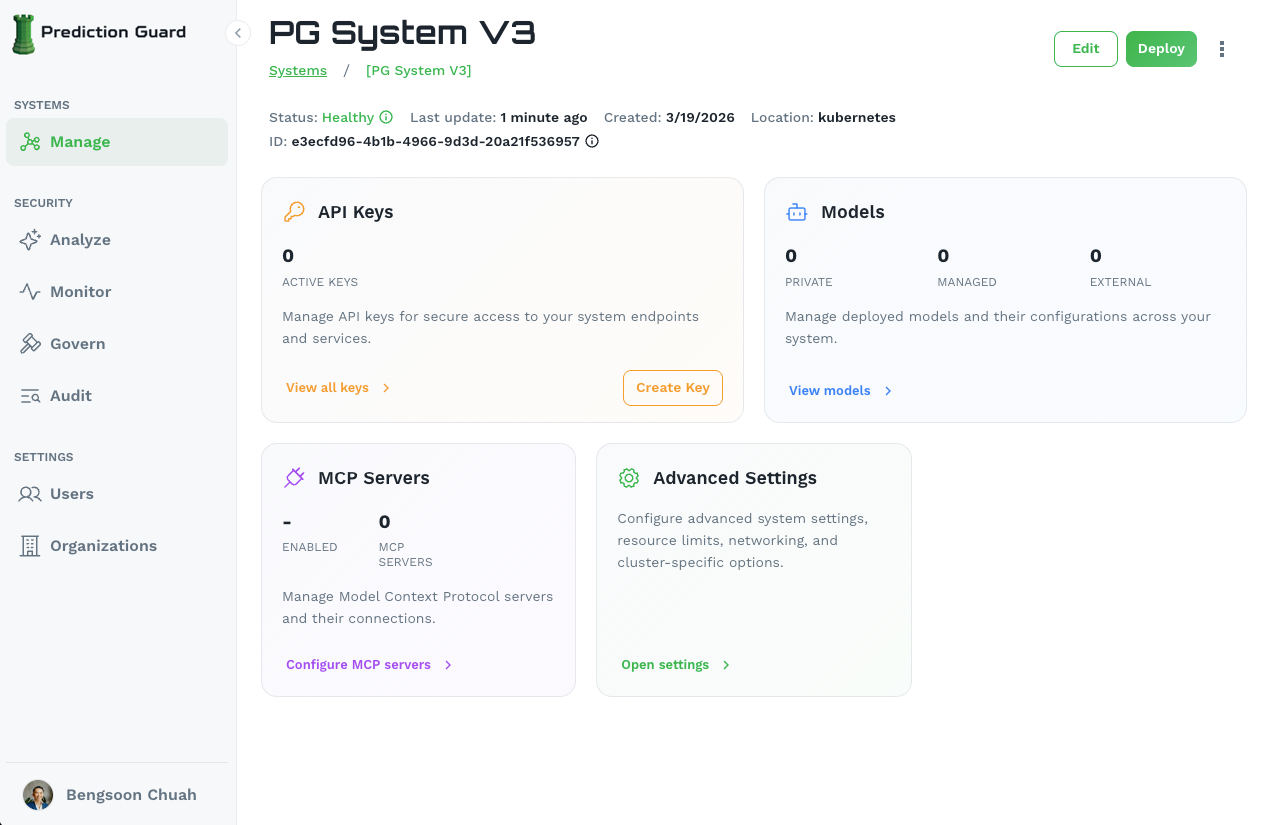
From the dashboard you can:
- API Keys: Create and manage API keys for secure access to your system’s endpoints
- Models: Deploy private, managed, or external models — see Model Management
- MCP Servers: Configure Model Context Protocol servers and connections
- Advanced Settings: Update system settings, resource limits, networking, and cluster-specific options
To update a system’s configuration, click Edit from the system management page. To get the deployment command for a system, click Deploy.
Deploying a System
Once created, a system needs to be deployed to your infrastructure. Click the Deploy button on the system management page to get the installation command, then follow the guide for your environment: