

Building Agents
Agent Forge enables you to create specialized AI agents tailored to your organization’s needs. This comprehensive guide covers all aspects of agent creation; from basic setup to advanced configurations.
Agent Builder Overview
Access the Agent Builder from the left sidebar to create and manage your agents.
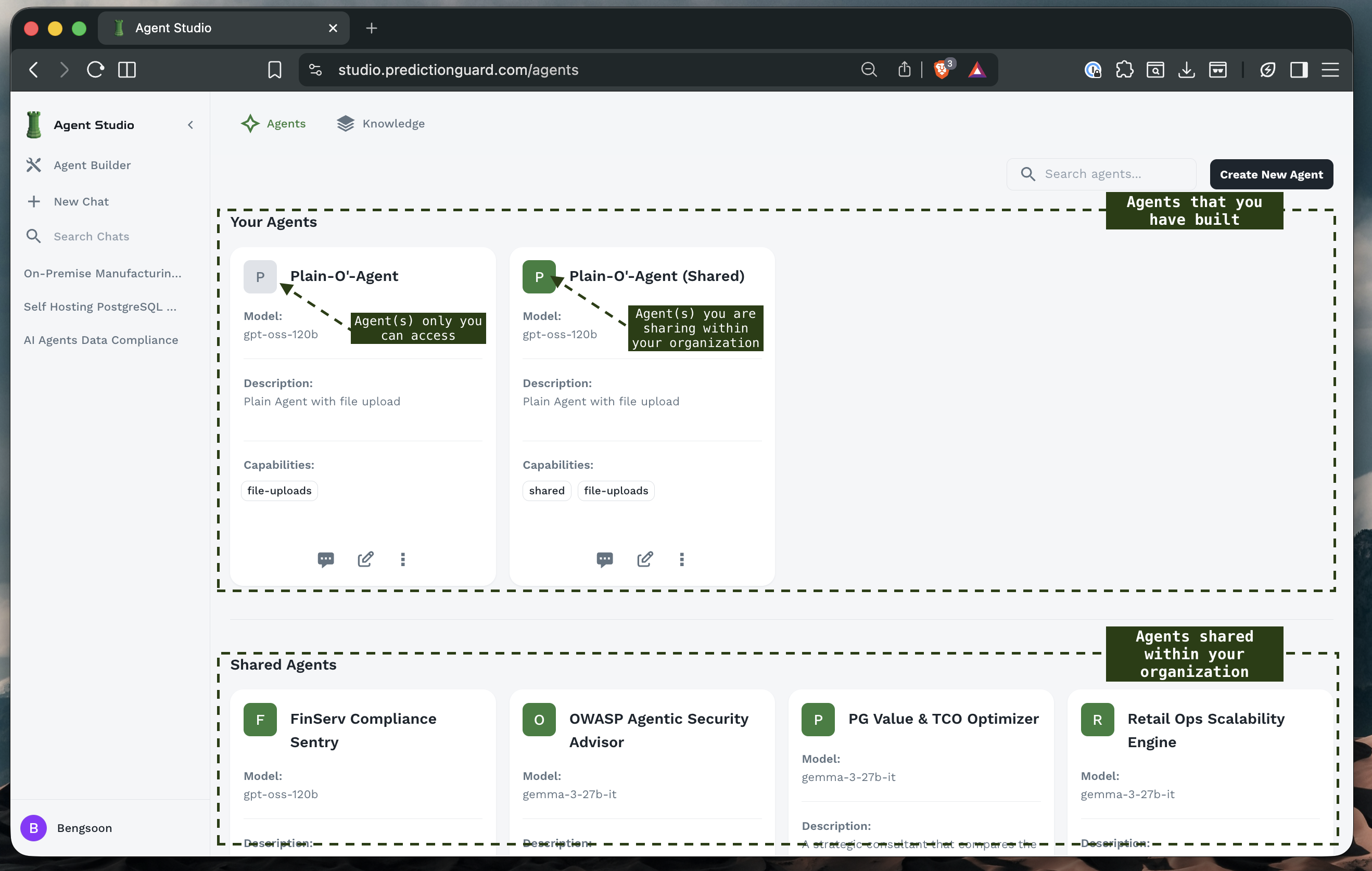
The Agent Builder provides:
- Your Agents: Personal agents you’ve created
- Shared Agents: Organization-wide agents
- Create New Agent: Button to start building
- Search: Find agents by name or description
- Agent Management: Edit, duplicate, or delete agents
Creating Your First Agent
Starting the Creation Process
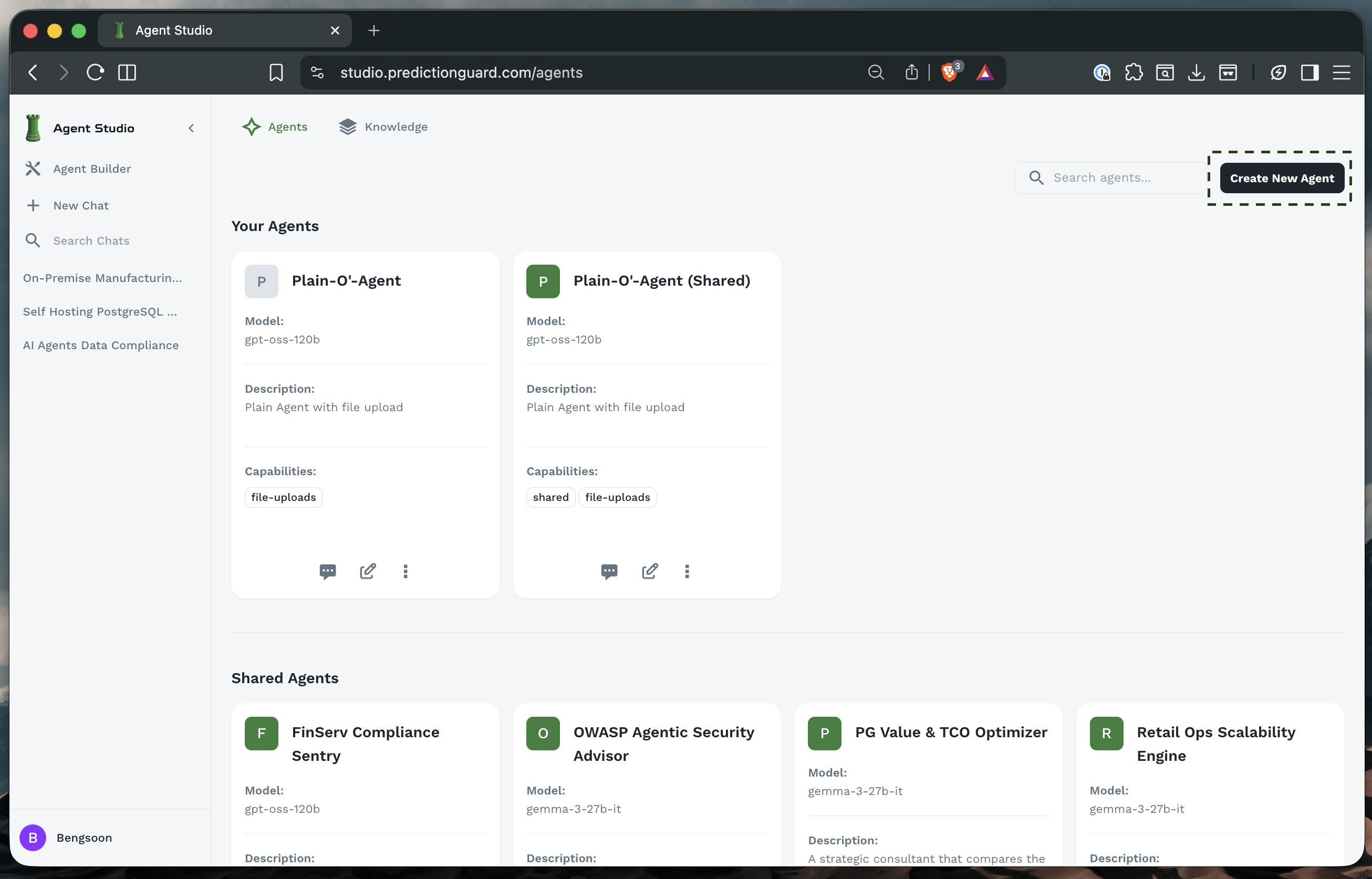
- Click “Create New Agent” in the top-right corner
- You’ll be directed to the agent configuration form
- The form is organized into sections for different aspects of your agent
Tip: Plan your agent’s purpose before starting. Consider what tasks it will perform, what knowledge it needs, and who will use it.
Basic Information
The first section covers fundamental agent details.

Agent Name
Purpose: A clear, descriptive name for your agent
Best Practices:
- Use descriptive names that indicate the agent’s purpose
- Include domain or function: “FinServ Compliance Sentry”, “Code Review Assistant”
- Keep it concise but meaningful: 2-5 words ideal
- Consider naming conventions for your organization
Description
Purpose: Explain what your agent does and when to use it
What to Include:
- Primary function: What the agent specializes in
- Use cases: When to use this agent
- Capabilities: What it can help with
- Limitations: What it cannot do
Model & Instructions
This section defines your agent’s intelligence and behavior.
Base Model Selection
Purpose: Choose the underlying large language model
Available Models (vary by deployment):
- gemma-3-27b-it: Google’s instruction-tuned open-weight model built for balanced performance across diverse tasks.
- gpt-oss-120b: OpenAI’s open-weight model designed for powerful reasoning, agentic tasks, and versatile developer use cases.
- Hermes-3-Llama-3.1-8B: General use model that excels at reasoning and multi-turn conversations, with an improved focus on longer context lengths.
- Qwen2.5-Coder-14B-Instruct: Designed to enhance code generation, reasoning, and fixing, making it a powerful tool for developers.
- Qwen2.5-VL-7B-Instruct: Multimodal vision-language mode that excels in analyzing images, video and text.
Choosing the Right Model:
Tip: Start with a mid-size model and adjust based on performance. Smaller models are often sufficient for focused tasks with good prompts.
System Prompt
Purpose: Define your agent’s personality, expertise, and behavior
The Most Important Configuration: Your system prompt determines how your agent thinks and responds.
System Prompt Structure
A well-crafted system prompt includes:
1. Role Definition
2. Core Responsibilities
3. Knowledge Scope
4. Behavioral Guidelines
5. Limitations
System Prompt Best Practices
Be Specific: ❌ “You are a helpful assistant” ✅ “You are a cybersecurity expert specializing in OWASP Top 10 vulnerabilities and secure coding practices for web applications”
Define Expertise Boundaries:
Set Response Format:
Include Safety Guidelines:
Use Examples in Prompts:
Streaming Mode
Purpose: Control how responses are delivered
Options:
- Streaming: Responses appear word-by-word in real-time
- Non-Streaming: Complete response delivered at once
When to Use Streaming:
- ✅ Interactive conversations
- ✅ Long-form responses
- ✅ Better perceived performance
- ✅ User can see progress
When to Use Non-Streaming:
- ✅ Short, quick responses
- ✅ API integrations
- ✅ Batch processing
- ✅ When complete response needed before action
- ✅ When using MCP tool calls
MCP requires “Non-streaming (with MCP capabilities)” mode: If you plan to connect your agent to external tools via MCP Integration, make sure you choose the right mode. MCP tool calls execute in real-time and stream results back as they arrive.
Generation Settings (Advanced Settings)
Fine-tune how your agent generates responses.
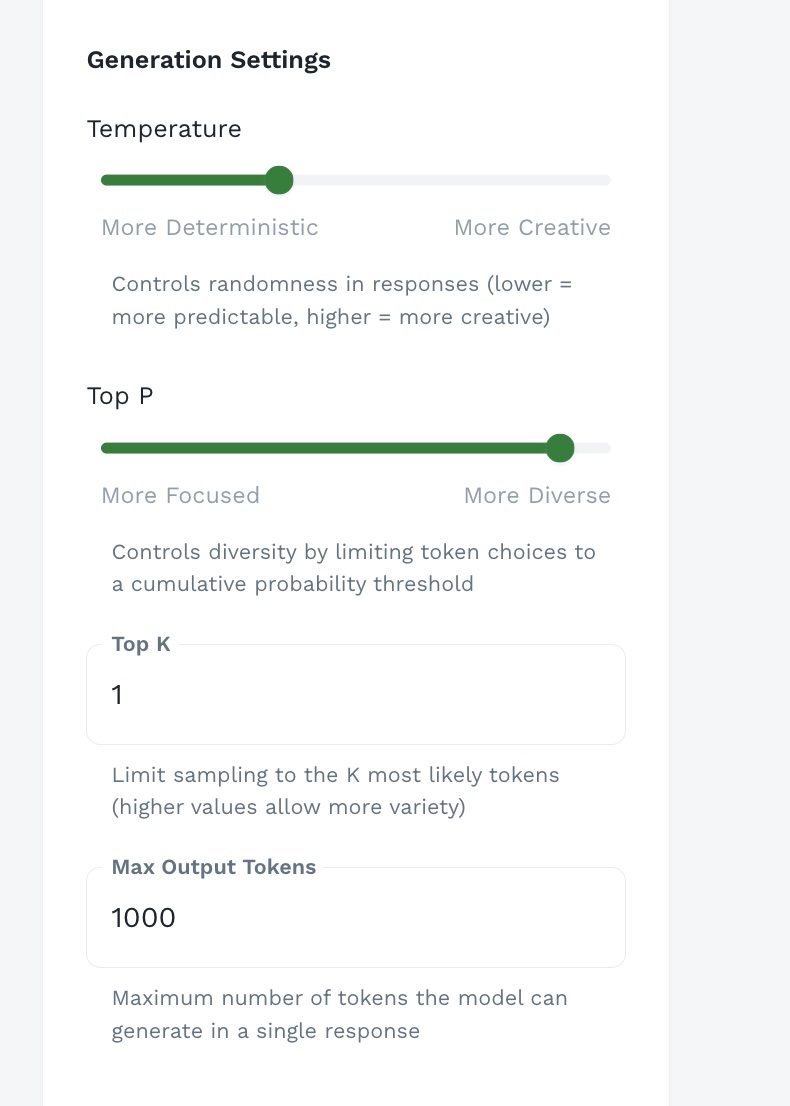
Temperature
Range: 0.0 to 2.0
Purpose: Controls randomness and creativity in responses
Scale:
Recommended Settings:
Important: For factual, compliance, or safety-critical applications, use lower temperature (0.0-0.3) to ensure consistent, accurate responses.
Top P (Nucleus Sampling)
Range: 0.0 to 1.0
Purpose: Controls diversity by limiting token choices to a cumulative probability threshold
Scale:
How It Works:
- Model ranks all possible next tokens by probability
- Top P selects from tokens that cumulatively reach the threshold
- Lower values = Consider only most likely tokens (focused)
- Higher values = Consider broader range of tokens (diverse)
Recommended Settings:
- 0.9-0.95: Good balance for most applications (default)
- 0.5-0.7: More focused, consistent responses
- 0.95-1.0: Maximum diversity for creative tasks
Top K
Range: 1 to unlimited (typically 1-100)
Purpose: Limit sampling to the K most likely tokens
How It Works:
- Model considers only the K most probable next tokens
- Lower K = More focused, repetitive
- Higher K = More variety, potential for surprises
Recommended Settings:
- 1: Always pick most likely token (deterministic)
- 10-20: Focused, consistent responses
- 40-50: Balanced variety
- 80-100: High diversity
Max Output Tokens
Range: Varies by model (typically 100-4000+)
Purpose: Maximum number of tokens the model can generate in a single response
Understanding Tokens:
- Tokens ≠ Words
- Approximate: 1 token ≈ 0.75 words (English)
- Example: “Hello, world!” ≈ 3-4 tokens
Recommended Settings:
Resources & Knowledge
Configure how your agent accesses and uses organizational knowledge.
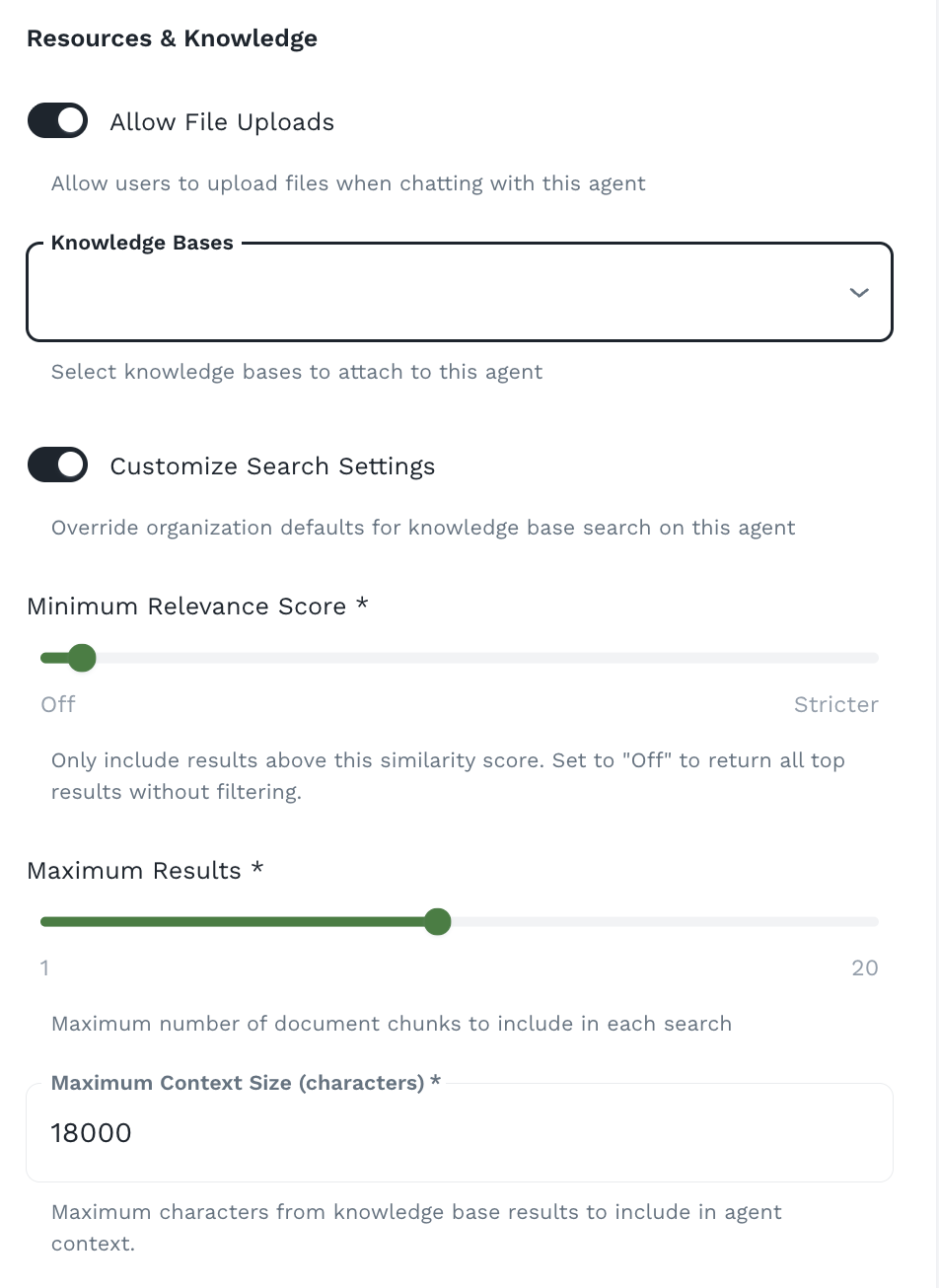
Allow File Uploads
Purpose: Enable users to upload files during conversations
Toggle: On/Off
When Enabled:
- Users can upload documents while chatting
- Agent can read and analyze file contents
- Files persist throughout the conversation
Knowledge Bases
Purpose: Attach organizational knowledge to your agent
Dropdown: Select one or more knowledge bases
How It Works:
- User asks a question
- System performs semantic search on attached knowledge bases
- Relevant documents/chunks retrieved
- Context added to agent’s prompt
- Agent generates response using knowledge
Customize Search Settings
Toggle: On/Off
When enabled, you can customize:
Minimum Relevance Score
Range: Off to Stricter
Purpose: Only include results above this similarity score
Settings:
- Off: Return all results, no filtering
- Low (0.3-0.5): Include loosely related documents
- Medium (0.5-0.7): Balance precision and recall
- High (0.7-0.85): Only highly relevant documents
- Strict (0.85-1.0): Only near-exact matches
Maximum Results
Range: 1 to 20
Purpose: Maximum number of document chunks to include in each search
Recommended Settings:
- 1-3: Focused, specific queries
- 5-10: Standard (balanced)
- 10-20: Complex queries needing broad context
Maximum Context Size
Range: Typically 1,000 to 50,000+ characters
Purpose: Maximum characters from knowledge base results to include in agent context
Example: 18000 characters ≈ 4,500 tokens ≈ 3,000 words
Access Control & Security
Configure who can use your agent and what security features are enabled.
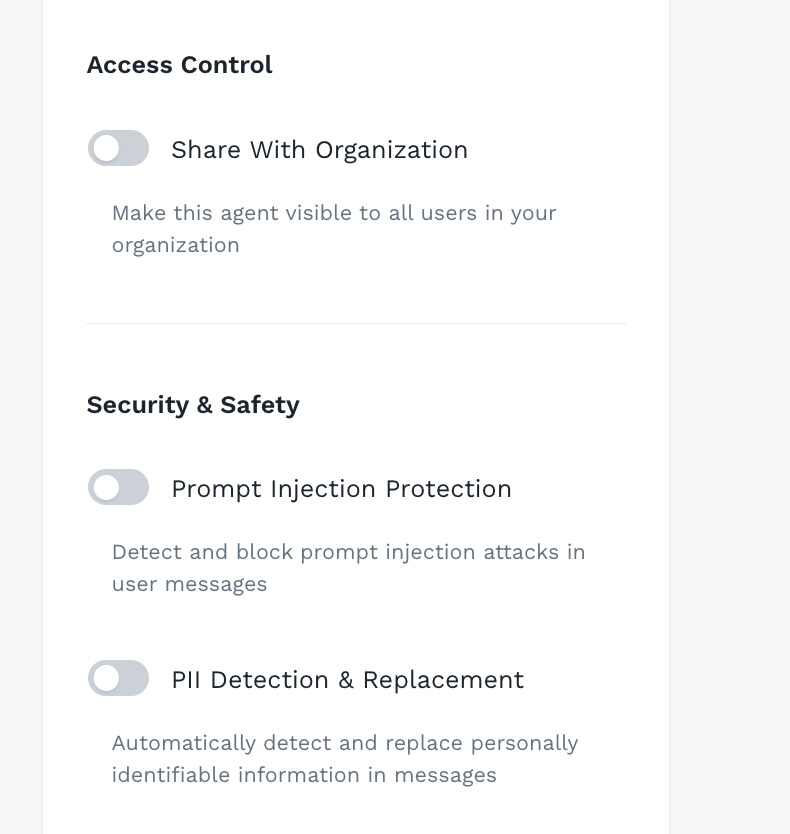
Share With Organization
Toggle: On/Off
Purpose: Make this agent visible to all users in your organization
When to Share:
- ✅ General-purpose assistants
- ✅ Company-wide knowledge agents
- ✅ Standard operating procedure guides
Prompt Injection Protection
Toggle: On/Off
Purpose: Detect and block prompt injection attacks in user messages
What It Protects Against:
- Users trying to override system prompt
- Attempts to extract system instructions
- Malicious prompt manipulation
- Jailbreak attempts
PII Detection & Replacement
Toggle: On/Off
Purpose: Automatically detect and replace personally identifiable information in messages
What It Detects:
- Names, email addresses, phone numbers
- Social Security Numbers
- Credit card numbers
- Addresses and IP addresses
- Dates of birth
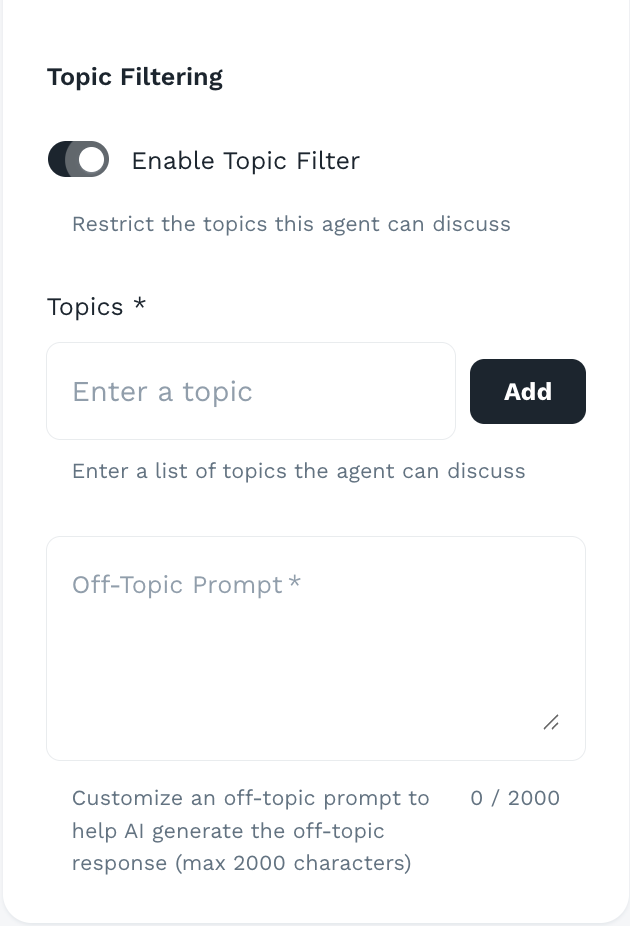
Topic Filter
Control what subjects your agent can discuss.
Purpose
Topic filters ensure your agent stays focused on its intended purpose and doesn’t respond to off-topic or inappropriate queries.
Configuration Options
Allowed Topics (Whitelist approach):
- Define specific topics agent should address
- Agent politely declines off-topic requests
Blocked Topics (Blacklist approach):
- Define topics agent should refuse
- Agent declines these even if otherwise relevant
Saving and Testing Your Agent
Saving Your Agent
- Review all settings one final time
- Click “Create Agent” or “Save Changes”
- Agent is now available for use
- Appears in “Your Agents” section
Testing Your Agent
After creation, thoroughly test your agent:
Basic Functionality:
- Start a new chat with your agent
- Ask typical questions from your use case
- Verify responses are appropriate
- Check tone and style match expectations
Next Steps
Now that you can build agents:
- Configure MCP - Connect your agent to external tools and live data sources
- Create Knowledge Bases - Add organizational knowledge to your agents
- Share with Team - Enable organization sharing and collaborate