

MCP (Model Context Protocol)
MCP (Model Context Protocol)
Agent Forge includes native support for the Model Context Protocol (MCP) — an open standard that allows AI agents to securely connect to external tools, APIs, databases, and services. With MCP, your agents can go beyond language generation to take real actions (querying live data, executing code, calling external APIs, and interacting with organizational systems).
What is MCP?
MCP (Model Context Protocol) is a standardized protocol for connecting AI models to external capabilities through MCP servers. Each MCP server exposes a set of tools that the agent can invoke during a conversation.
Examples of what MCP enables:
- Query a live database or data warehouse
- Retrieve real-time information from external APIs
- Execute code or automation scripts
- Read from and write to organizational systems (CRMs, ticketing, file stores)
- Interact with third-party services and integrations
MCP Levels in Agent Forge
Agent Forge supports MCP at two levels:
This layered approach lets administrators centrally manage shared infrastructure while allowing individual agent builders to extend with specialized tools.
Configuring MCP in the Agent Builder
MCP is configured during agent creation or editing, within the Agent Builder.
Step 1: Select an Organization-Level MCP Server (If Available)
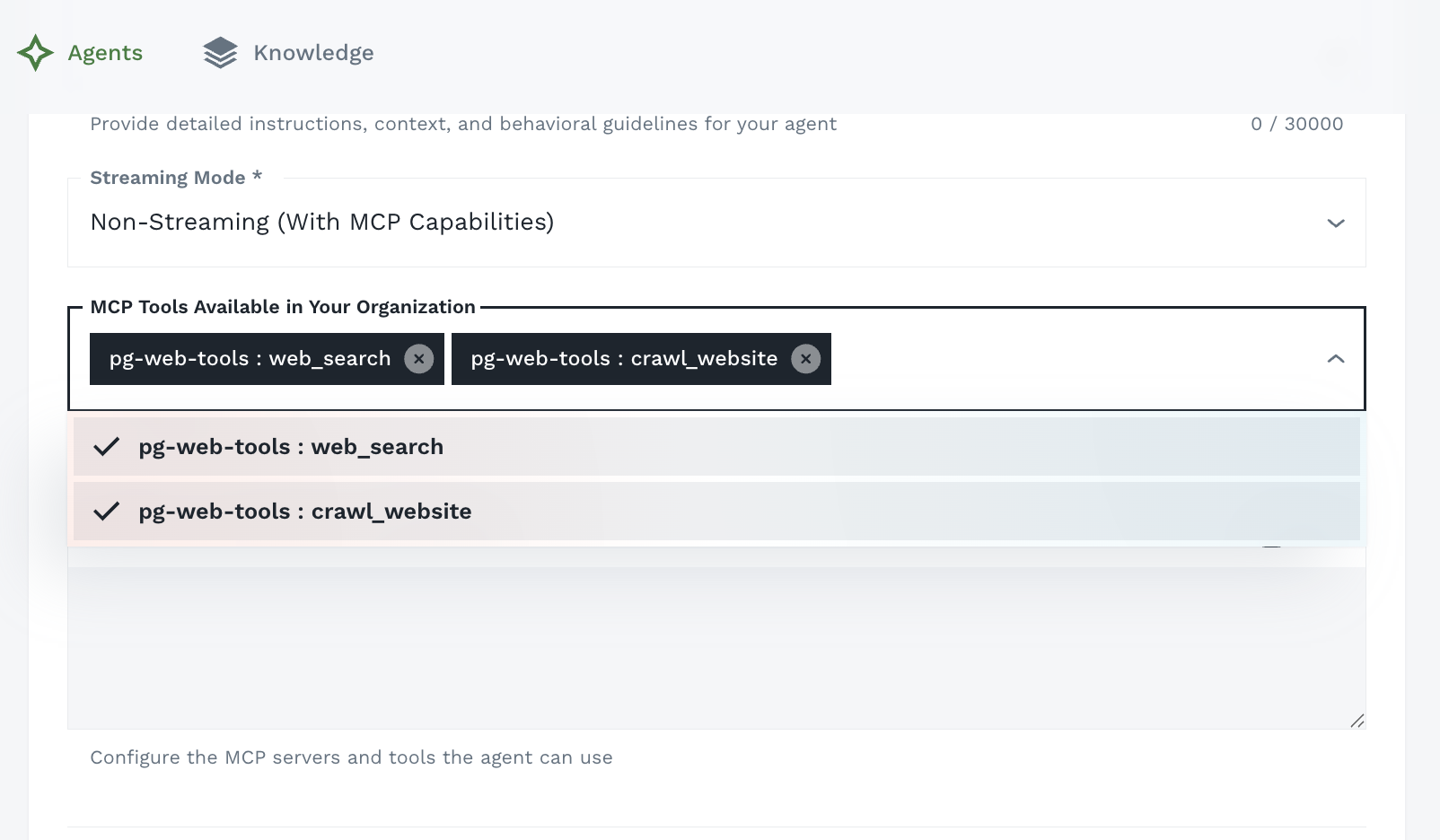
If your organization’s administrator has pre-configured MCP servers, they will appear in the MCP Tools Available in Your Organization section of the Agent Builder. These are shared, centrally-managed servers available to all agent builders in your organization.
Tip: Organization-level MCP servers are ideal for unified governance and shared infrastructure — internal databases, company APIs, and standard integrations that multiple agents can access.
Step 3: Add a Custom MCP Server (Agent-Level)
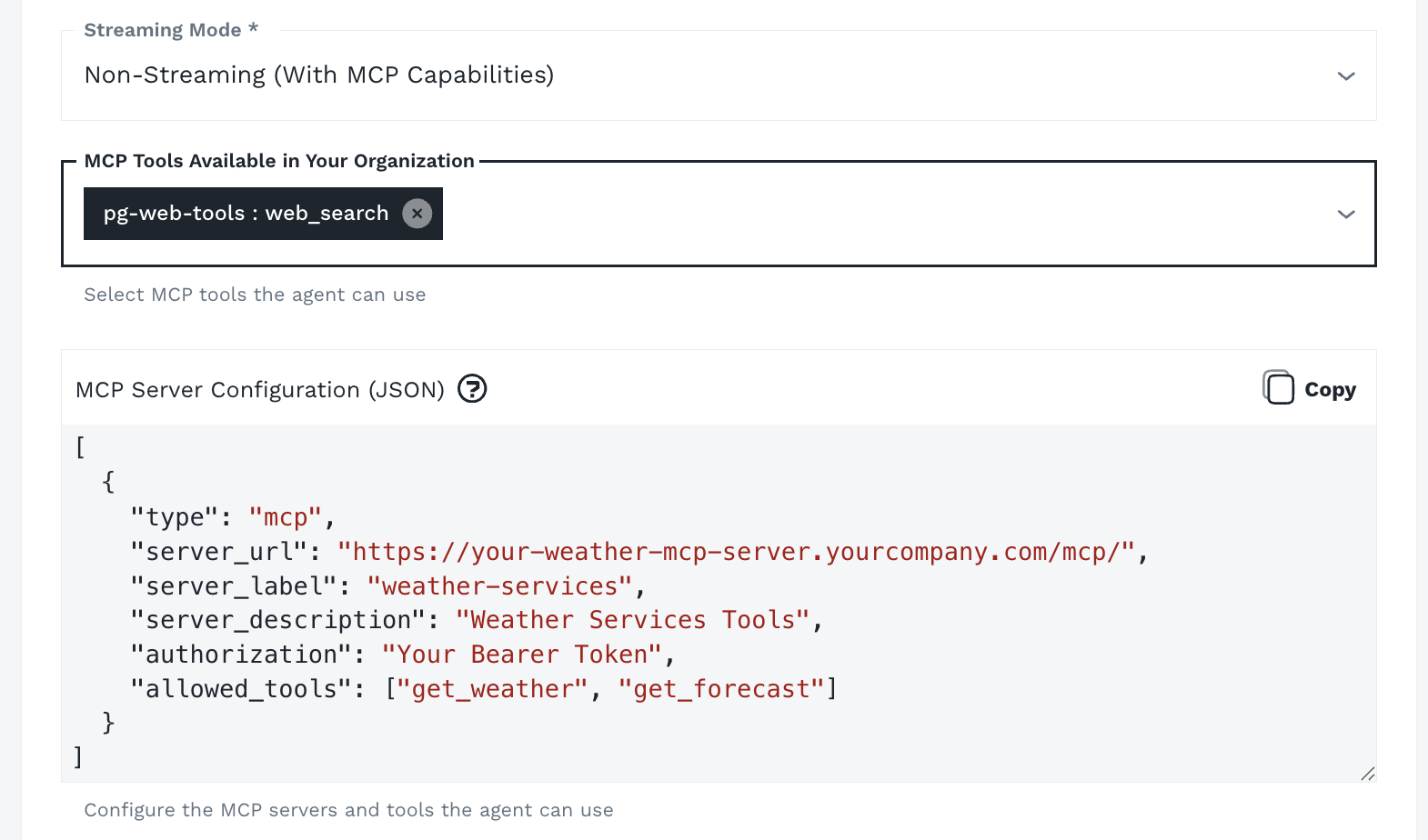
In addition to organization-level servers, you can connect your agent to a custom MCP server specific to your agent’s needs.
To add a custom MCP server:
- In the MCP Server Configuration (JSON) field, enter your server config as a JSON array
- Each entry in the array defines one MCP server — add multiple objects to connect multiple servers
- Click Save to attach the configuration to your agent
Configuration format:
How Agents Use MCP Tools
Once MCP servers are configured, the agent automatically has access to the tools exposed by those servers. During a conversation:
- User sends a message requiring external data or action
- Agent determines which MCP tool(s) to invoke
- MCP tool executes against the connected server
- Results are returned to the agent
- Agent incorporates results into its streamed response
This all happens transparently — users see a natural conversational response that incorporates live data.
Use Cases
Data Retrieval
Connect agents to internal databases, data warehouses, or BI tools so they can query live figures, metrics, and reports on demand.
System Integration
Enable agents to interact with ticketing systems, CRMs, or internal tools — looking up records, creating entries, or updating statuses.
Live API Access
Give agents access to external APIs (weather, financial data, inventory) so responses reflect current real-world state, not just training knowledge.
Code Execution
Attach MCP servers that execute code or scripts, enabling agents to perform calculations, data transformations, or automation tasks.
Best Practices
Name Servers Descriptively: When adding custom MCP servers, use clear names that indicate what system or capability they represent (e.g., “Inventory DB”, “Jira API”, “Analytics Platform”).
Test After Configuration: After saving your agent with MCP configured, start a test conversation and trigger a tool call to verify the MCP connection is working correctly.
Limit Tool Scope: Configure MCP servers to expose only the tools your agent actually needs. A focused set of tools reduces confusion and improves agent decision-making.
Next Steps
- Building Agents - Full guide to agent configuration
- Knowledge Base - Add RAG-based organizational knowledge alongside MCP tools